Wednesday, August 22, 2018

How to Use Face ID on Any iPhone


How to Use Face ID on Any iPhone


Face ID is an innovative feature that uses face detection mechanism to allow users to unlock their iPhone. It was first introduced in iPhone X to replace the old Touch ID unlock mechanism. As you might know, Face ID is available in iPhone X only so if you own an older iPhone model, then you won’t be able to take advantage of this new feature.

Luckily, there’s now a new method that allows you to use Face ID on any iPhone, thanks to a new jailbreak app called Appellancy that mimics the functionality of Face ID on older iPhone models. Using this app, you can unlock your iPhone using your face just like how Face ID works.

In this tutorial, we’ll show you how to install and use Appellancy on any jailbroken iPhone running iOS 11.You may also like:online youtube downloader

Read also: How to Unlock a Disabled iPhone Without iTunes

How to Use Face ID on Any iPhone

Step 1: Open Cydia, then go to the Sources tab and add the following new repository: http://julioverne.github.io

Step 2: Once the new source has been added and all its packages loaded, search for the tweak Appellancy and install it.

Step 3: Go to the Home screen and open the app. Tap on the + button in top right corner to add a new user, then open it. Here you can take pictures of your face so that the app recognizes you when you attempt to unlock your iPhone.

The more pictures you take, the better the face detection functionality. For instance, you can capture a picture from every angle of your face. Apart from your own face, you can also add other people’s face to the app so that your device can be unlocked with their face as well.

Step 4: Now you’re ready to go. Whenever you want to unlock your iPhone using your face, simply hold it in front of you so that the front camera can detect your face. Within a second, your device will automagically get unlocked just like Face ID.

That’s all you need to do to get Face ID on any iPhone. It’s important to note that this app just mimics the functionality of Face ID and doesn’t actually enable the original Face ID feature built by Apple. It is nowhere as secure as Face ID and I wouldn’t recommend anyone to use this app for unlocking their iPhone as Touch ID and passcode are much more secure. Instead, this jailbreak app should just be used for fun purposes when you want to show your friends that your device has face unlock mechanism as well.

It’s very interesting to see the creativeness of jailbreak developers in bringing new iOS features to older iPhone models that don’t support them.


Note: you must jailbreak your iPhone to use this trick.


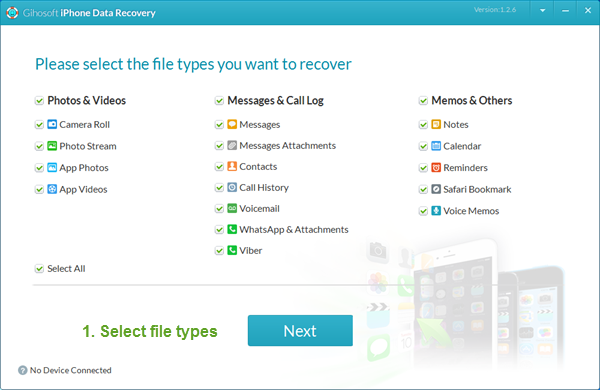
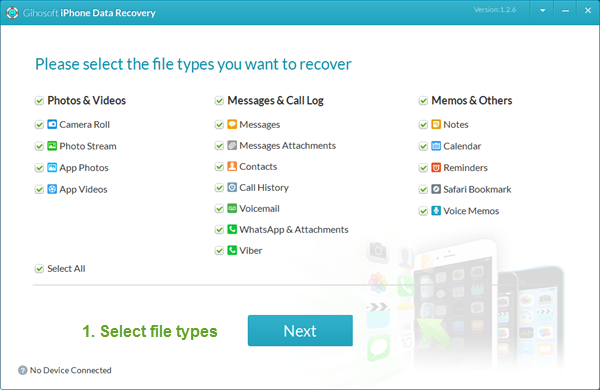
If you lost data after jailbreak, you may use Gihosoft iPhone Data Recovery to get back your lost iPhone data, which is a powerful recovery tool to help you retrieve various data like messages, contacts, voicemails, notes, photos, etc.


Free iTunes/iPhone Backup Extractor for iPhone, iPad

Jihosoft iTunes Backup Extractor is a powerful tool to recover and extract important data from iPhone, iPad & iPod touch backup on Windows or Mac.

You may also like:


4 Tips to Fix Unable to Install iOS 12 Update


How to Recover Data from iPhone/iPad after iOS 11/12 Update

Saturday, August 18, 2018

How to Add Ringtones to iPhone on Old iTunes

How to Add Ringtones to iPhone on Old iTunes

It is a little bit more cumbersome, but you are able to add music from iTunes to your phone as a ringtone. Try it once and you’ll see why iMyFone TunesMate is an easy choice.sync ringtones

Since the latest iTunes has removed the Tones tab, this method is only for iTunes which is before version 12.7.

Tones tab disappears on iTunes 12.7? How to Transfer Ringtones Using iTunes >>


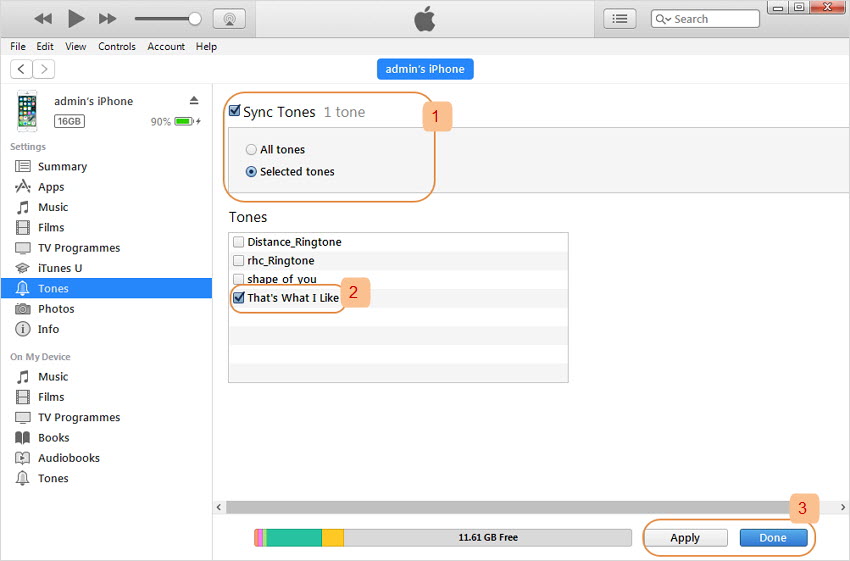
Step 1. Plug your iPhone into your computer. Open iTunes on your computer.

Step 2. If the ringtone is not in your iTunes library, drag your desired m4r files into iTunes to add them to your library.

Step 3. Within iTunes, click on your device and then choose Tones from the menu on the left.You may also like:online youtube downloader

Step 4. Check the box labeled Sync Tones.You may also like:online youtube downloader

Step 5. Choose All Tones or Selected Tones according to your preference.

Step 6. After you have selected the appropriate ringtones, click Apply and the tones will be synced to your iPhone.

Disadvantages:


You can't put the ringtones directly from computer to iPhone wihout going through iTunes library.

For now, check:Free iTunes/iPhone Backup Extractor for iPhone, iPad

Jihosoft iTunes Backup Extractor is a powerful tool to recover and extract important data from iPhone, iPad & iPod touch backup on Windows or Mac.

Syncing iTunes files to iPhone will delete the existing files from iPhone as well.
How to Download Purchased Ringtones on iPhone

An easy way to add new ringtones to your iPhone is by doing it straight through your phone’s settings or the ToneStore. The two main problems with this method are that (1) ringtones cost about the same amount as a full song and (2) you are limited to tones available through iTunes.

For now, check:Free iTunes/iPhone Backup Extractor for iPhone, iPad

Jihosoft iTunes Backup Extractor is a powerful tool to recover and extract important data from iPhone, iPad & iPod touch backup on Windows or Mac.
If you are alright with those drawbacks, then here are the steps to follow:
download purchased ringtones


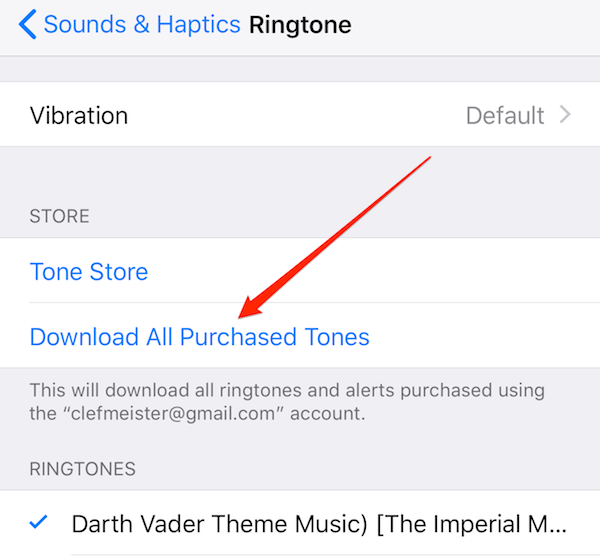
Step 1. Open the Settings on your iPhone.

Step 2. Scroll down until you find Sounds and tap on it.

Step 3. Select Ringtone.

Step 4. Tap on Download All Purchased Ringtones to add any ringtones you may have previously purchased from your current Apple ID.

Step 5. Optional: To purchase new ringtones, tap on Tone Store to go to a special section of the iTunes Store devoted just to ringtones.

Friday, August 10, 2018

iCloud IMEI Unlock Service for iPhone and iPad 2019

Today, we will explain you how you can remove the iCloud activation lock from your iPhone. There are numerous ways of unlocking the iCloud activation lock including unlocking through IMEI number, using an online platform and a downloadable software program. Some of the methods are free to use, and some are paid. However, you will have to choose the best way to unlock your iCloud. Using an official iCloud IMEI unlock service is the best method to get rid of the iCloud lock. Before using the iCloud activation unlock service, you will need your device’s IMEI number. The IMEI number is a unique 15-digit number that is used to recognize your phone. Every phone has a unique IMEI number which can be used for unlocking services.
Steps to Use the iCloud IMEI Unlock Service for iPhone and iPad

The process we are continuing to discuss here uses your IMEI number to remove the iCloud lock from your phone. After unlocking, you would be able to set up a new iCloud on your iPhone. It means you would be able to use your phone without any lock. Here is the method of unlocking iCloud.


1) First of all, visit the official iCloud IMEI unlock website and click on the iCloud Unlock option: https://store.unlockboot.com/icloud-removal-service/

2) Now it will ask for your device’s IMEI number. Put your phone’s IMEI number and head to the next section.


3) Here you will have to put your personal details like the email address. After that, you could complete the payment to process the unlocking method.

4) There are different payment options and techniques available on the website for your ease. You can choose any of the methods according to your needs.

5) After finishing the payment, you will get a confirmation email of payment completion.

6) The average unlock delivery time of iCloud IMEI unlock service is 5-15 days. After removing the iCloud lock, you will receive an email that your iCloud has been successfully unlocked. Now you could use your phone to set up a new iCloud account.


As you can see that this is straightforward methods and only takes a few minutes to complete. All you need is putting the right information on the website and the old iCloud account will be removed from your iPhone.

Another great thing about this method is its safety. As mentioned earlier, you will find a lot of different websites providing free or cheap services. However, all of these services are not secure. Some of the companies and websites will use illegal and harmful ways to unlock your iCloud locked device. This could be an obvious and inexpensive way, but you may get some problems with your mobile or iCloud.

So always use a legal and official iCloud IMEI unlock method to permanently unlock your iCloud locked iPhone or iPad. On the other hand, if you have lost your IMEI number or you don’t have access to it, don’t worry about it. You can instantly and quickly get access to your IMEI number.

The first method of getting IMEI number is checking the phone box. The IMEI number is printed on your phone’s box. You can also access your IMEI number from the Settings app. Click on the General option under Settings app and click on the About option. Here you will get your iPhone’s IMEI number.


If you lost videos from iOS Camerall Roll which are nowhere to download again, you can use Gihosoft iPhone Data Recovery to get back deleted videos from iOS device including iPhone, iPad and iPod Touch.

Jihosoft Android Data Recovery: the best Android Data Recovery software for Windows and Mac to recover deleted contacts, messages, photos, videos, WhatsApp and etc from Android devices.

Any app suggestions or topic recommendations are appreciated in the comments down below.


Thursday, August 9, 2018

6 Tricks to Fix YouTube App Crashing in iOS 12


6 Tricks to Fix YouTube App Crashing in iOS 12
1. Reboot Your iPhone

Rebooting your iPhone is simply forcing it to restart. These steps will help you if your YouTube app is not working in iOS 12.

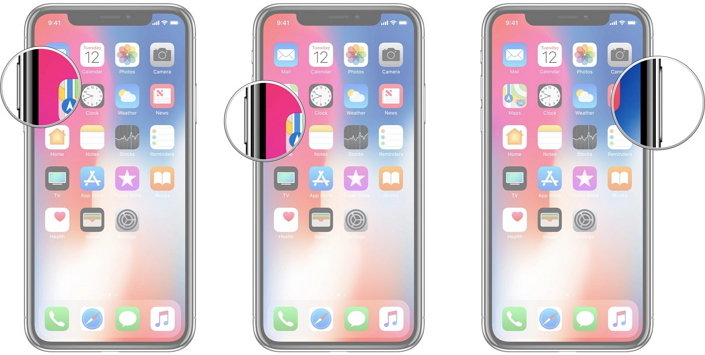
If you are using iPhone X, 8, 8 Plus, press both the Volume up and down buttons. Then you need to long press the Side button till the screen goes off and you see the Apple logo.

For users of the iPhone 7, 7 Plus, you need to long press the Side button and the Volume down button till your device’s screen goes off and you see the Apple logo.


And lastly for users of iPhone 6s or its earlier models, you need to long press the Sleep button and the Home button till the device’s screen goes off and the Apple logo appears.
2. Clear YouTube Cache

There are certain times when your YouTube app like any other app will have some issues that could be caused by something minor or serious. If it is the first time your YouTube app crashing, this could most probably be caused by a server lapse, memory error or a minor app glitch. To fix this problem, you will need to clear all the recent apps on your device by following these steps:

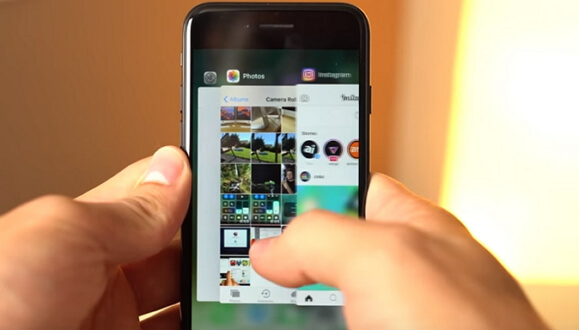
Step 1: Swipe up from the bottom to the middle of your device’s screen, then hold till you see the App switcher.

Step 2: Then locate YouTube from the apps list by swiping left to right.

Step 3: Then firmly touch and hold the YouTube app.

Step 4: Then click on the (-) sign to clear the app.

Step 5: Alternatively, immediately you see the (-) sign you can swipe up to close the YouTube app.


You can also clear any apps running in the background to prevent them from causing problems to your YouTube. Once you are done clearing the recent apps, reboot the device for the new changes to be applied then refresh the system.
3. Update YouTube App

Your YouTube app may at times not work properly if you iPhone is not running the latest YouTube version. You need to follow these steps to update your YouTube app:

Step 1: On your device launch the App store.

Step 2: Click on the Updates icon to start updating your YouTube app.

Step 3: When completed, reopen YouTube and check if it is working properly.


4. Check Network And Router Settings

If you are having problems accessing your YouTube app, you can check your network and router settings. You can try resetting your router if you are using a router for internet or check your router and network settings online by trying to troubleshoot to find out the problem. However, there are times when you need quick access to your YouTube and do not have the time to go through all these checks or even update your iOS 12. You can access your YouTube through the web by opening Safari and entering your YouTube address on the bar.


5. Reinstall YouTube App

Deleting and reinstalling the app will give you better chances of fixing YouTube crashing issue if updating the app did not work. Follow these steps:

Step 1: Go to your device’s Home screen and long press on the app icon till it starts to shake. An (x) will then appear on the icons.

Step 2: Click on the (x) to delete the app.

Step 3: Go to the App store, search for the YouTube app and reinstall it again.


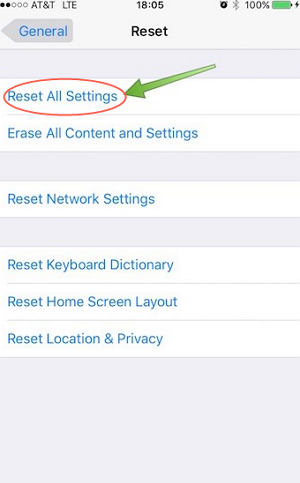
6. Reset All Settings

Improperly configured network related options and settings on your iPhone could cause YouTube app not working properly. You can try reverting back the modified changes you made on the settings to see if there will be a difference by following these steps:

Step 1: On your device’s Home screen click on Settings.

Step 2: Then click on the General tab.

Step 3: Scroll till you see the Reset tab and click on it.

Step 4: Select Reset all settings tab. This will reset your iPhone settings to their original state without losing any of your iPhone’s data.

Step 5: Click on Reset all network settings to reset all settings on your iPhone.

Step 6: Enter your device’s passcode if requested.

Step 7: Then click on the option to confirm the reset.


Once the reset is complete, wait for your device to reboot then open your YouTube app to see if the problem is gone.

If you ever lost any photo or video that saved to your iPhone camera roll, you can easily recover them with Gihosoft iPhone Data Recovery.

Gihosoft Free Android Data Recovery can help you easily recover lost data such as photos, videos, contacts, text messages, WhatsApp & Viber chats from Google Pixel/XL or other Android phones effortlessly.


Monday, August 6, 2018

How to Disable Snap Map in Snapchat on iPhone or Android Device


How to Disable Snap Map in Snapchat on iPhone or Android Device 2019


How to Disable Snap Map in Snapchat on iPhone or Android Device

note: Steps are the same for both, iPhone and Android devices.

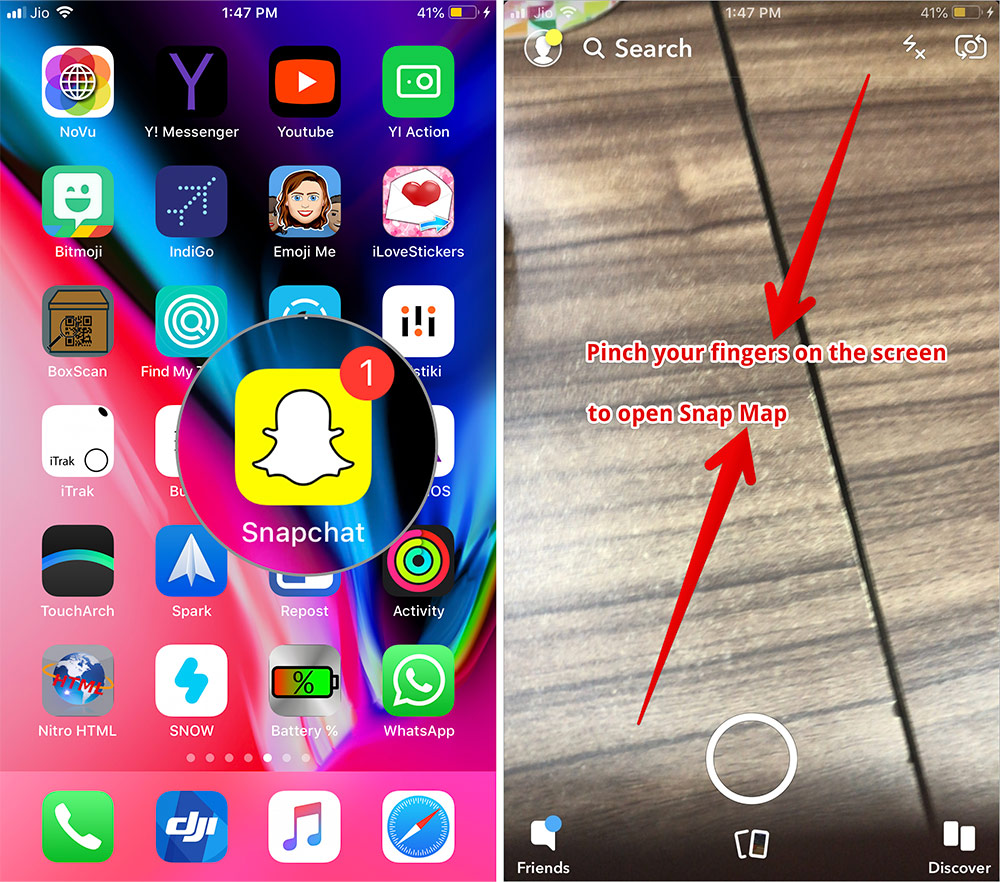
Step #1. Launch the Snapchat app on your Smartphone and then pinch your fingers on the camera screen to open Snap Map.


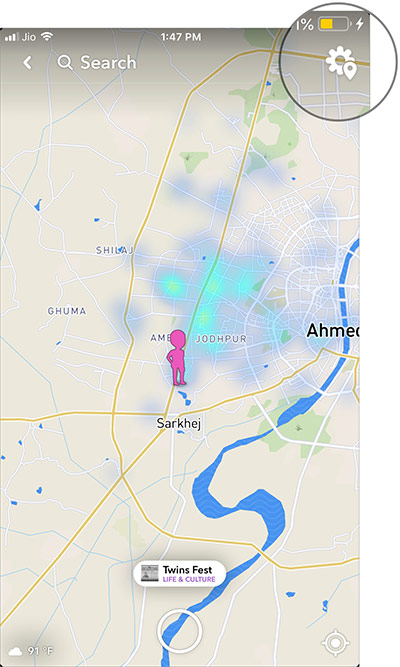
Step #2. Now, tap on the cog icon at the top right corner.


Step #3. Next up, you have three options —


Ghost Mode


My Friends (To show your location to all of your friends when using the app.)


Only These Friends

If you don’t want anyone to see your location turn on the switch that is next to Ghost Mode. Then, select how long you want to keep the Snap Map disabled.

For example, you can turn it off for 3 hours, 24 hours or until you turn off the switch manually.

However, if you want to show your location to some of your close friends, tap on Only These Friends and then select the persons. Then after, tap on Done to confirm.


That’s it! To prevent anyone from seeing where I’m, I’m going to turn on the switch next to Ghost Mode. What about you?


If you lost videos from iOS Camerall Roll which are nowhere to download again, you can use Gihosoft iPhone Data Recovery to get back deleted videos from iOS device including iPhone, iPad and iPod Touch.

You may also like:

How to transfer messages from iPhone to iPhone

Jihosoft iPhone Backup Extractor Extract and recover all types of data from iPhone backup files, such as camera roll photos, videos, SMS, contacts, reminders, WhatsApp, and etc.
Any app suggestions or topic recommendations are appreciated in the comments down below.

Sunday, August 5, 2018

How to Redeem iTunes gift card via Email?


How to Redeem iTunes gift card via Email?

This is most asked question by readers. Since websites like Gather.com or Giveaways usually send you your free iTunes gift card via email,

You can redeem from there as well. And it is even more comfortable.

To redeem an iTunes gift card on an email, follow:

Step 1: Open up the Mail app and open the email with iTunes gift card.

Step 2: Most of the GPT websites usually offer “Redeem Now” button. Tap on it and you’ll be directed to Apple’s website.

Step 3: Once the website loads, you’ll be asked to enter your Apple ID password. Make sure you read the URL carefully.

Step 4: Once you’ve entered the password, all you need to do is just the enter the Gift Card code. When completed, it will also show up in the Balance of your Wallet App.

Now that you’re ready to spend this iTunes gift card, you can start earning more free iTunes Gift Cards through our website. We’re constantly trying to come up with the best tricks possible.

Sponsor Ads:


Gihosoft Free iPhone Data Recovery is a professional iPhone Data Recovery software to get back all your lost text message, photo, video, call history, note, contact and more from iPhone/iPad/iPod Touch. It offers a full solution to recover your lost data in different tough situations. Besides recovering data directly from iPhone, iPad and iPod touch, it also allows you to recover data from iCloud and iTunes backup files.

iPhone backup unlocker:Recover iTunes Backup Password.

iPhone backup extractor free:The best iPhone Backup Extractor software to extract photos, text messages, contacts, voice memos, note, WhatsApp, Viber and etc from iPhone/iPad backup.

Check out our Facebook and page for more iphone news/tips and updates.

You may also like:

How to transfer messages from iPhone to iPhone

Friday, August 3, 2018

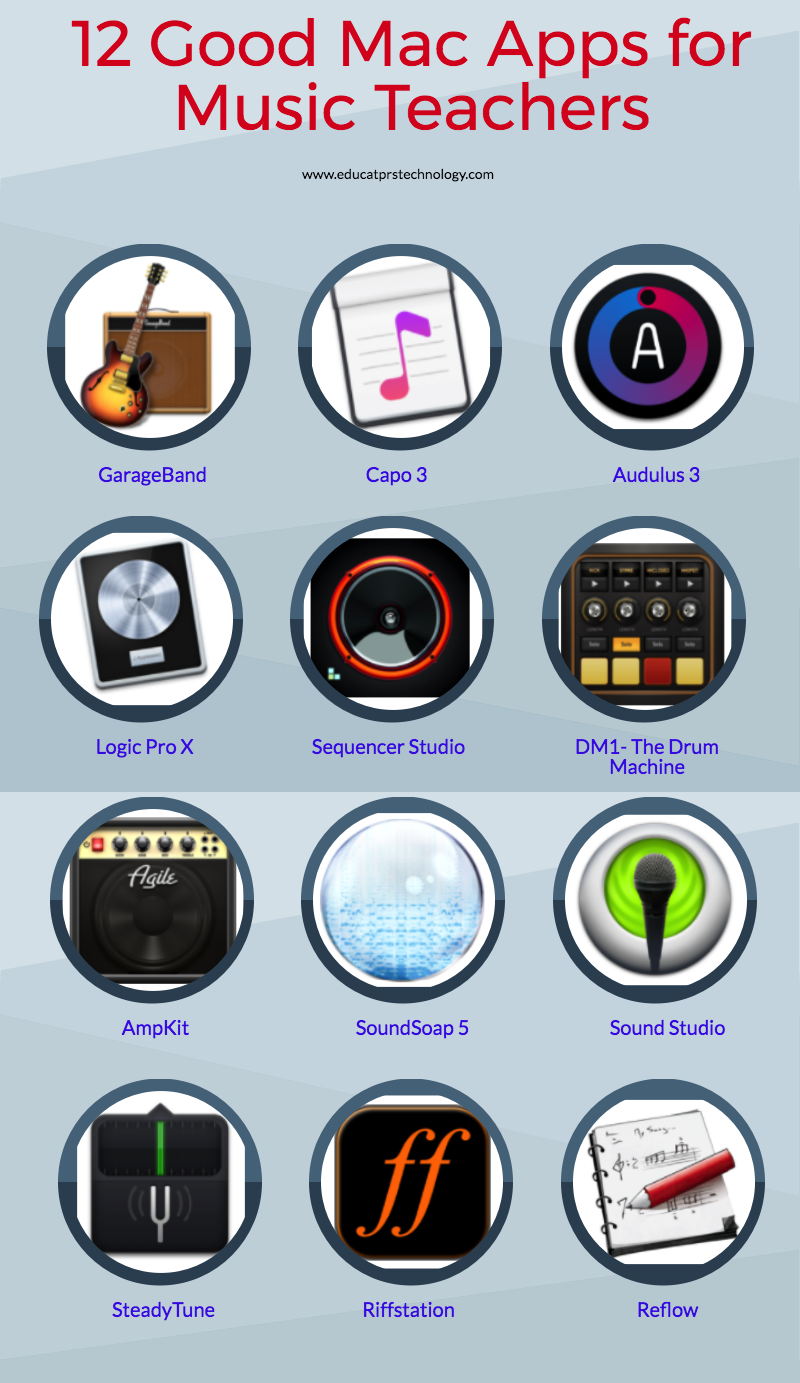
12 Useful Mac Apps for Music Teachers 2019 List


12 Useful Mac Apps for Music Teachers


1- GarageBand


‘GarageBand is the easiest way to create a great-sounding song on your Mac. Add realistic, impeccably produced and performed drum grooves to your song with Drummer. Easily shape the sound of any instrument in the Sound Library with Smart Controls.’


2- Capo 3


‘Capo helps you learn to play the songs in your music collection by ear. Its sophisticated, easy-to-use features will have you learning to play more songs in less time.’


3- Audulus 3


‘With Audulus, you can build synthesizers, design new sounds, or process audio. All with low latency real-time processing suitable for live performance. Audulus's user interface is clean, simple, and easy to learn, allowing you to focus on sound.’


4- Logic Pro X


‘Sophisticated tools for professional songwriting, editing, and mixing are built around a modern interface that’s designed to get creative results quickly and also deliver more power whenever it’s needed.’


5- Sequencer Studio No longer working


‘Sequencer Studio is a revolutionary audio music creation package built around the concept of step sequencing. Without any musical knowledge users can build creations they can be truly proud of and call their own. ’


6- DM1- The Drum Machine


‘DM1 is an advanced Drum Machine. It turns your computer into a fun and creative beat making machine. Easy and fast to use, loaded with 108 superb electronic drum kits and beautiful hyper-realistic graphics, DM1 has been designed for a lot of instant fun.’


7- AmpKit - guitar amp & effects studio


AmpKit transforms your Mac into a powerful guitar amp & effects studio! Includes 22 faithfully-reproduced amps with 38 separate amp channels, 28 pedals, 28 cabinets and 8 mics. Effects include various overdrive, distortion, fuzz, compression and phaser pedals, plus clean boost, delay, reverb, acoustic simulation, wah, EQ, octaver, tremolo, vibrato, chorus, and flanger.’


8- SoundSoap 5


‘SoundSoap fixes audio noise problems! Rescuing your videos from noise problems with SoundSoap is effortless - no experience necessary.’


9- Sound Studio


‘Record, edit, and produce your audio with Sound Studio, an easy-to-use Mac app for recording and editing digital audio on your computer. Digitize tapes and vinyl records, record live performances, create your own mixes with crossfades, tweak the levels and EQ, apply digital effects and save in all major file formats.’


10- SteadyTune


‘SteadyTune, the Mac menu bar tuner from the makers of GuitarToolkit and AmpKit, is beautifully implemented, amazingly lightweight, and always available when you need it. Now you can add tuning to the list of musical tasks your Mac is great at!’


11- Riffstation


‘Load any song from your existing music collection (mp3, mp4, aac, flac, ogg, wav, aiff) and it automatically calculates and shows you how and when to play each guitar chord synced with the original music. In auto mode, it can detect maj, min and 7th chords with approximately 85% accuracy. Sus chords and maj/min 7th chords can be added manually.’


12- Reflow


‘Reflow is a brand new musical notation software that can be used to create your own original scores in a very flexible and innovative way. Songs you write can be played back using the embedded software synthesizer.’


Sponsor Ads:
Gihosoft Free iPhone Data Recovery is a professional iPhone Data Recovery software to get back all your lost text message, photo, video, call history, note, contact and more from iPhone/iPad/iPod Touch. It offers a full solution to recover your lost data in different tough situations. Besides recovering data directly from iPhone, iPad and iPod touch, it also allows you to recover data from iCloud and iTunes backup files.
iPhone backup unlocker:Recover iTunes Backup Password.
iPhone backup extractor free:The best iPhone Backup Extractor software to extract photos, text messages, contacts, voice memos, note, WhatsApp, Viber and etc from iPhone/iPad backup.
Comment and win free lifetime registration code of Gihosoft Total Video Converter.
Youtube/Tumblr video downloader - Download Youtube/Tumblr video lets you convert and download Youtube/Tumblr to MP4 and MP3 for Free!

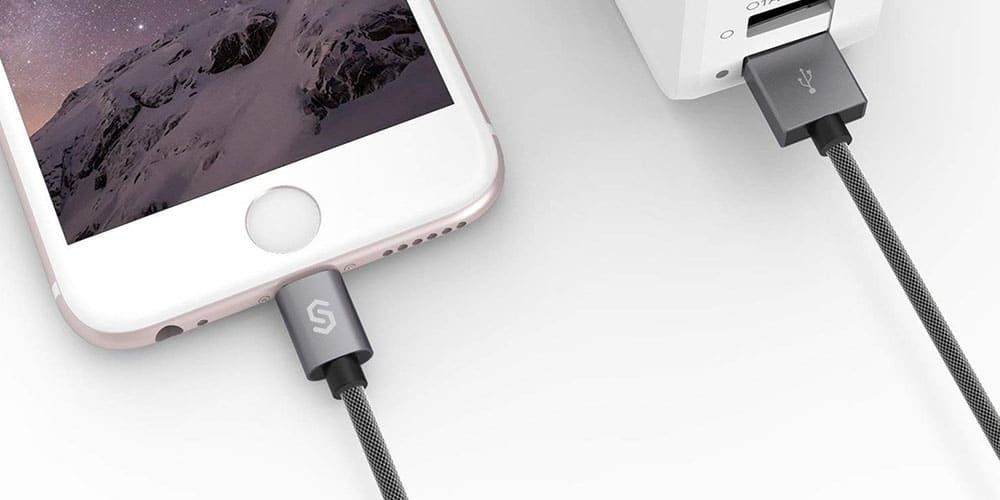
Find Your Next Dependable Charging Cord Here [Deals Hub]

There’s no such thing as too many charging cables. Fortunately, these days there are plenty of options when it comes to color and length. We...