Saturday, October 13, 2018

What is iTunes Dark Mode and How to Use it?


What is iTunes Dark Mode and How to Use it?

What is iTunes Dark Mode?

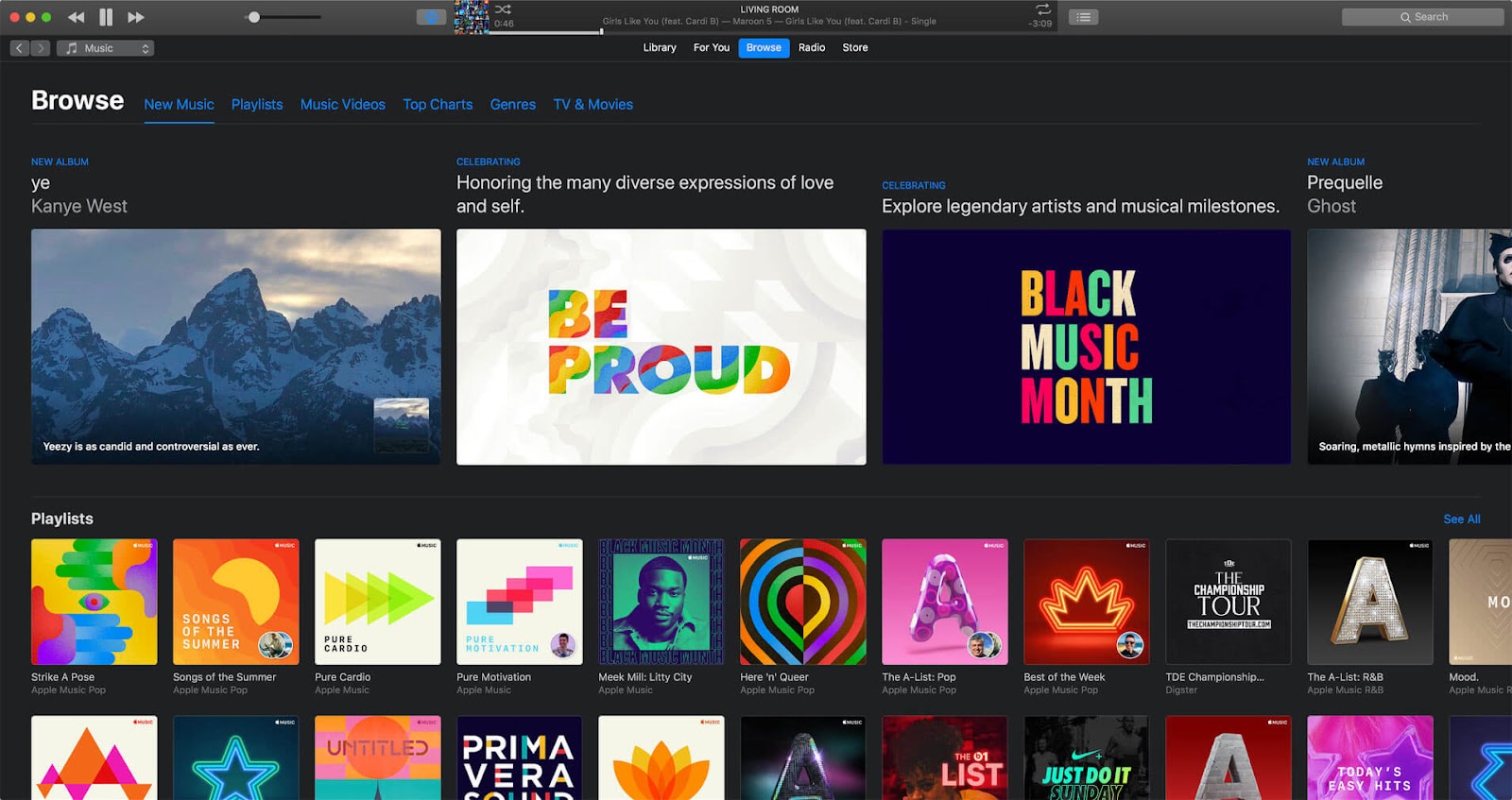
In macOS Mojave’s Dark Mode, most of your operating system’s bright features will go dark of gray. This includes features like the dock, trashcan, menu bar, and system panel. Some macOS Mojave apps will also share in this feature, and such apps include iTunes, Safari, App Store, News, etc.

Therefore, with iTunes Dark Mode, using iTunes at late hours of the night won’t have much strain on the eyes. It will be very handy for those who play songs with iTunes for lengthy periods, and at late hours of the night.
How to Use iTunes Dark Mode

If you’ve been waiting so long for iTunes dark mode, which would come with macOS Mojave on September 24, then it will be awesome if you can learn how to use/enable iTunes dark mode on Mac or PC before the official release date Mac’s next operating system.
#1. iTunes Dark Mode on Mac

Apple Inc. has finally added Dark Mode to macOS Mojave. This feature will cut across all Mac features and software to dim many of the screen elements from their usual blinding white to soothing dark tone.

Here is how to set up dark mode on Mac:

Step 1. If you skip past the prompt to set up dark mode when installing macOS Mojave, then click the Apple logo at the top left corner of your window.

Step 2. Select “System Preferences > General”.


Step 3. Under Appearance menu, select the Dark Mode preview. The dark mode preview will show you the levels of dark background that’s available.

However, if you want to have dark mode only at night, you can go for Dynamic Desktop option to achieve that.

Step 1. Go to “System Preferences > Desktop & Screen Saver”.

Step 2. Select a desktop with a curvy icon on it; that’s a dynamic desktop.
#2. iTunes Dark Mode on Windows PC

macOS Mojave now has a dark mode, but Windows 10 users have been enjoying this feature for quite a time now. Windows’ built-in dark mode turns windows black and changes the text and icon to light colors. On Windows, you can activate dark mode just with few steps, and we’ve outlined the steps in the following paragraphs.

Step 1. Search for “Settings” on the Windows 10 search bar and launch it.

Step 2. Click “Personalization”. This feature will display a paintbrush on the computer screen.

Step 3. Click “Colors > Choose your app mode > Dark > and check the bubbles beside the dark”.

Step 4. Pick an accent color at the top of the “Color” window.


Gihosoft Photo Eraser Erase unwanted objects and perfect your amazing photos!

If you lost data after you updated to a new iPhone, you can always use Gihosoft iPhone Data Recovery to get the data back from the old iPhone or backup.

Must Read:Jihosoft iTunes Backup Unlocker

Jihosoft Photo Eraser

Free iTunes/iPhone Backup Extractor for iPhone, iPad

iPhone Backup Extractor - Extract Data from iPhone Backup

You may also like:online youtube downloader

Monday, October 8, 2018

How to Achieve iPhone Disabled Fix without iTunes 2019


How to Achieve iPhone Disabled Fix without iTunes 2019

Achieve iPhone Disabled Fix without iTunes Tips

If you are facing the problem of iPhone disabled and don’t want to use iTunes, then you can fix your disabled iPhone through any of the following ways.
1. Unlock Disabled iPhone with Find My iPhone

Most people don’t know that there are other ways to achieve iPhone disabled fix without iTunes. A useful way of solving this issue is via Apple’s Find My iPhone feature. This allows you to lock, locate or reset your iDevice remotely. The following steps will guide you.

Step 1: Log into your iCloud account and visit the Find My iPhone feature, then click on the DEVICE option.

Step 2: Choose the iDevice that has been disabled.

Step 3: Now, find your iPhone, play a sound on it and lock it. You need to erase your device if you want your iPhone 6 disabled fix without iTunes.

Step 4: Tap on the ERASE DEVICE option and confirm. The Find My iPhone feature will also erase your iPhone remotely.


Gihosoft Photo Eraser Erase unwanted objects and perfect your amazing photos!

If you lost data after you updated to a new iPhone, you can always use Gihosoft iPhone Data Recovery to get the data back from the old iPhone or backup.

Jihosoft Photo Eraser

Free iTunes/iPhone Backup Extractor for iPhone, iPad

iPhone Backup Extractor - Extract Data from iPhone Backup

You may also like:online youtube downloader

Wednesday, October 3, 2018

How to Restore iPhone with iTunes to Remove Passcode

How to Restore iPhone with iTunes to Remove Passcode


1 Restore iPhone with iTunes to Remove Passcode

Another method you can use to recover your device is to erase it with iTunes. This action will help you to remove the passcode on your device, but the only way this option will work is if you have synced your iPhone to iTunes.

Here are the steps to follow:


First, connect your iPhone to the computer you previously synced your iPhone with.


Go to iTunes and open. If passcode is required, you may have to try your hand on another computer or make use of the recovery modes if available.


Allow time for iTunes to synchronize your iPhone and then make a backup.


As soon as you synced and backup your device, click 'Restore'.


At the setup screen during the restoration process, click on 'Restore from iTunes backup.'


Once in iTunes, select your device, and then take a look at the size and the date of each of your backups. Select the important ones you need.


2. Restore iPhone with Recovery Mode to Remove Passcode

If you happen not to have synced your device with iTunes or launch Find My iPhone in iCloud, the next best option to restoring your device is to make use of the recovery mode. Here are the steps to follow:


After your iPhone is connected to the PC, open up iTunes.


With the device still connected to the computer, force it to restart. This works on different devices:


Go to iTunes and open. If passcode is required, you may have to try your hand on another computer or make use of the recovery modes if available.

i. If using iPhone 8, iPhone 8 Plus/iPhone X: You should press down and quickly let go the Volume Up button. Repeat the process with the Volume Down button and proceed to hold the Side button until the Recovery-mode screen appears

ii. If using iPhone 7 and iPhone 7 Plus: Press down both the Volume Down and Side buttons simultaneously. Do not release until the recovery mode screen appears.

iii. If using iPhone 6s: Press and hold both the Home and the Side (or Top) buttons simultaneously until the recovery-mode shows up.


Two options will show up: 'Restore' and 'Update'. Choose 'Restore'. At this, iTunes will download the appropriate software for your device. However, if it exceeds 15 minutes, your iPhone may exit the recovery mode, and you may need to repeat the previous steps.


Wait until the process finishes, and then set up your iPhone.


Gihosoft Photo Eraser Erase unwanted objects and perfect your amazing photos!

If you lost data after you updated to a new iPhone, you can always use Gihosoft iPhone Data Recovery to get the data back from the old iPhone or backup.

Jihosoft Photo Eraser

Free iTunes/iPhone Backup Extractor for iPhone, iPad

iPhone Backup Extractor - Extract Data from iPhone Backup

Jihosoft Android Data Recovery: the best Android Data Recovery software for Windows and Mac to recover deleted contacts, messages, photos, videos, WhatsApp and etc from Android devices.

Gihosoft Android data recovery Free is a super awesome software specialized in Android file recovery. With this program, you are able to recover deleted photos, music, videos, messages, contacts, call logs, WhatsApp messages, Viber chat history and more from Samsung, Huawei, LG, HTC, Motorola, Google, Oneplus, Sony, Lenovo, ZTE and other Android devices directly.
You may also like:online youtube downloader

Wednesday, September 19, 2018

How To Remove Instagram Followers Without Blocking


Back in the day’s people had limited options for staying connected with the people they know. But with modern and upgraded technology surely the tables have turned. As nowadays we don’t have to wait any longer if we want to talk to someone. Just grab your mobile and simply call or text the other person, because now the options are limitless. And with the launch of an enormous number of social networking sites, the communication process has become more quick and easy. As social media has the power to make you reach everyone you have met in your life.

Worth Reading: The Best Snapchat Like Face Filter Apps

And talking about social networking sites without mentioning Instagram is simply a crime. As Instagram is a simple, fun, and creative way to share photos and videos which is visible to everyone in your profile. Also, it is a great medium to connect with people through messaging and now with the latest update even with live calls. But there are times when this advantage of connecting with people turns out to be a disaster. Although Instagram has privacy settings which ensure that outside users have to first send you a request to be a part of your profile.


But still sometimes you just unknowingly add someone to your profile and you immediately realize it was a bad move. Earlier the most common way to remove someone from your follower’s list was to block them directly. But no one wants to be that rude with someone you know or even if you don’t know. So stop compromising and don’t hesitate, as there is one much easy and acceptable method where you can remove someone from your Instagram without even blocking them.


Note: If you have a public account on Instagram then you first have to switch your account to private to follow this steps.


Steps To Remove Instagram Followers Without Blocking:


Go to your Instagram profile.


Tap ‘Followers’ from the top of the screen.


Select the follower you want to remove and click on the three dots from the right corner.


You will get two option ‘Cancel’ and ‘Remove’.


Tap on ‘Remove’ and that person will be removed from your profile immediately.


Note: This method works for both Android as well as iPhone.


Related Posts:

8 Solutions to Fix Camera Not Working on Android

The Best 5 Call Blocker Apps for Android

Photoshop Alternatives: Best 6 Free Photo Editing Softwares for Windows

Top 10 Best Camera App for Android Phones?

How to Repair Broken Buildings or Other Objects in Photos

How to Clone Yourself and Other Objects in a Picture Without Photoshop


If you find this article helpful do like and share your views in the comment box.


Jihosoft Photo Eraser

Erase unwanted objects and perfect your amazing photos!

Remove objects from photos with Photo Eraser is almost as easy as taking a shot. Now you can use this tool to erase undesirable objects from your pictures, such as tourists, watermarks, logos, texts, blemishes and other unwanted things without real photo-editing skills required at all.


Jihosoft Android Data Recovery

The most powerful and professional data recovery software for Android that can restore deleted or lost contacts, photos, videos, audios, SMS, call logs, WhatsApp chat, Viber messages from any Android devices due to accidental deletion, virus attack, formatting. It supports all popular Android smartphones and tablets like Samsung, HTC, LG, Huawei, Motorola, Nexus, etc. In the meantime, you will be guided step by step if you never used this kind of tool before.


Tuesday, September 18, 2018

How to Restrict Apps on iPhone (iPad) in iOS 12/11? [2019 Solved]


How to Restrict Apps on iPhone (iPad) in iOS 12/11? [Solved] 2019


The Parental Controls also known as Restrictions on your iPhone allowing you to manage which apps, features, and content can and cannot be accessed on your iPhone. In other words, Restrictions give you the power to choose the apps other people can access or cannot access using your device. This feature also lets you set the Screen Time for particular apps.
Restrict Apps on iPhone with iOS 12

Restricting apps in iOS 12 is not similar to iOS 11. In fact, Restrictions are now under Screen Time in the Settings app. Here are the steps:

Step 1: Open Settings on your Home Screen and touch on Screen Time

Step 2: Click on Set up as Parent. There will be a App Limits interface.

Step 3: Check the apps you want to restrict and tap Set App Limit.


By doing so, you will have restricted the apps and they will not be visible on your Home Screen. You can re-enable them by going through the same process.
Restrict Apps on iPhone with iOS 11 and Below

If you own an iOS 11 device or below, you can restrict apps and prevent your kids from spending the whole day playing or chatting on your iPhone device. Here are the steps on how to restrict apps on iOS 11 and below:

Step 1: Open the Settings > General > Restrictions

Step 2: Click on Enable Restrictions. You will have to enter a passcode that you will use to either enable or disable the apps


Step 3: Toggle the Switch next to the specific app you would like to turn off.

Gihosoft Photo Eraser Erase unwanted objects and perfect your amazing photos!

If you lost data after you updated to a new iPhone, you can always use Gihosoft iPhone Data Recovery to get the data back from the old iPhone or backup.

Jihosoft Photo Eraser

Free iTunes/iPhone Backup Extractor for iPhone, iPad

iPhone Backup Extractor - Extract Data from iPhone Backup

Jihosoft Android Data Recovery: the best Android Data Recovery software for Windows and Mac to recover deleted contacts, messages, photos, videos, WhatsApp and etc from Android devices.

Tuesday, September 11, 2018

How to Jailbreak iOS 12


Can You Jailbreak iOS 12?

Posted by Rajesh Pandey on Sep 10, 2018 in Featured, Jailbreak iOS 12


In a few days from now, Apple will release iOS 12, the next major iOS software update for iPhone, iPad and iPod touch which includes performance and quality improvements, along with new features like Memoji, Screen Time, Siri Shortcuts, and more. Here’s the latest news and updates about iOS 12 jailbreak so you can take an informed decision when iOS 12 is released.
Current Jailbreak Status

You can currently jailbreak your iPhone, iPad or iPod touch if you’re on iOS 11.3.1 or lower. Electra Jailbreak supports iOS 11 – iOS 11.1.2 and iOS 11.2 – iOS 11.3.1. It does not work with iOS 11.4 or iOS 11.4.1 as Apple has patched the vulnerabilities used by the Electra Jailbreak in iOS 11.4 and iOS 11.4.1.
Changes in iOS 12 to Prevent Jailbreaking

Well-known iOS developer and researcher nullriver recently pointed out that Apple has made it harder to jailbreak iOS 12. That’s doesn’t come as a surprise. Apple has been upping the ante against its fight against jailbreakers. Apple has used this strategy to keep jailbreakers at bay. It not only releases new software updates, that fixes the vulnerabilities used by the jailbreaks but also introduces security changes in major software updates like iOS 12 that will make it even more difficult. It also stops signing the older iOS firmware file, which prevents users from downgrading back to the older iOS version that can be jailbroken.

He tweeted:

iOS 12 has a few things that’ll make jailbreaking harder:

– introduction of CoreTrust: this checks that all signatures come from Apple, supposedly stopping fake signing like ldid does

– vm_map_exec_lockdown: some form of userland ktrr, coming w/ the A12 (probably, unconfirmed)

He followed it up with another tweet providing some insight, and also clarifying that none of these changes are showstoppers, and didn’t seem like drastic changes:

– symbols are completely stripped in the iOS 12 kernelcache, will make patchfinders harder to make

None of these are show stoppers however, but we’re gonna need to play with it to see how it’s all implemented. Doesn’t seem anything too drastic yet.
iOS Jailbreak History

Apple has been making it difficult to jailbreak iOS devices.

In the case of iOS 10, the first iOS 10 jailbreak was released on December 21. Well-known hacker Luca Todesco released a beta semi-untethered jailbreak tool for iOS 10.1 known as Yalu+mach_portal for select 64-bit iOS devices. On January 26, 2017, he released a more stable version of Yalu jailbreak for iOS 10.2, which supported all 64-bit iOS devices except for the iPhone 7 and 7 Plus, which is only supported by the older, more unstable version for iOS 10.1.1.

In the case of iOS 11, the first iOS 11 jailbreak, to.panda was released on December 23, 2017 by Abraham Masri. On December 26, 2017, developer Jonathan Levin released LiberiOS, a developer-only jailbreak based on the async_wake exploit by Ian Beer for iOS 11.0 to iOS 11.1.2, but it did not include Cydia. Well-known hacker and developer Coolstar finally released Electra jailbreak for iOS 11.0 – iOS 11.1.2.
Jailbreak iOS 12 Status

There is currently no tool available to jailbreak iOS 12, which is currently in beta, and is likely to be released on September 12.

The good news is that iOS 12 has been jailbroken. In June, security researcher Liang Chen of KeenLab had managed to successfully jailbreak iOS 12 running on his iPhone X. As you can see in the YouTube video below, he gave a visual proof that his iPhone X running iOS 12 and then proceeded to launch the KeenLab jailbreak app which installed Cydia after jailbreaking iPhone X.

However, it was the first iOS 12 beta, so it remains to be seen if iOS 12 GM which will be released this week, and iOS 12 released to the public next week can still be jailbroken using the exploits used by researcher Chen to jailbreak iOS 12 beta.

It is unlikely that Chen will release the exploit behind this exploit since the KeenLab team is known to keep such exploits private for their own research and testing purposes. But it gives us hope that someone from the jailbreak community like coolstar or security researcher Ian Beer, who had discovered the exploits used in Electra Jailbreak to jailbreak iOS 11 – iOS 11.1.2 and iOS 11.2 – iOS 11.3.1, could discover them and use them to jailbreak iOS 12 released to the public.

Check Also: Top 5 Best File Transfer Apps for iPhone Users in 2019

Security researcher Simone Ferrini has tweeted over the weekend that he has managed to pwn iOS 12 beta 12, which is the latest beta release by Apple ahead of an upcoming Golden Master seed of iOS 12. He shared a video of the pwned iOS 12 beta:


It remains to be seen if it can be used to develop a jailbreak for iOS 12.

Based on the last two years, we may need to wait patiently for iOS 12 jailbreak. But it is not the case of if we can jailbreak iOS 12, but when can we jailbreak iOS 12.
Beware of Fake iOS 12 Jailbreaks

Fake news is not just affecting elections, the jailbreak community is also being targeted with fake jailbreaks. We are already seeing articles and YouTube videos which claim to jailbreak iOS 12. Any site claiming to have an iOS 12 jailbreak is a scam, so stay clear from such scam sites. Stay away from such tools as they can also potentially install malware on your iOS device. If there is a tool to jailbreak iOS 12, it will be available for free, and we’ll be the first to report it and share the jailbreak link.


What do you plan to do? Do you plan to install iOS 12 or do you plan to wait for iOS 12 jailbreak to be released before upgrading? Let us know in the comments below.


If you lost any important data on iPhone or iPad, like iMessages or photos, you may use Gihosoft iPhone Data Recovery to quickly recover deleted data for you.


Free iTunes/iPhone Backup Extractor for iPhone, iPad

Jihosoft iTunes Backup Extractor is a powerful tool to recover and extract important data from iPhone, iPad & iPod touch backup on Windows or Mac.
Monday, September 3, 2018

How to Wipe An iPad without Password via Find My iPad

How to Wipe An iPad without Password via Find My iPad

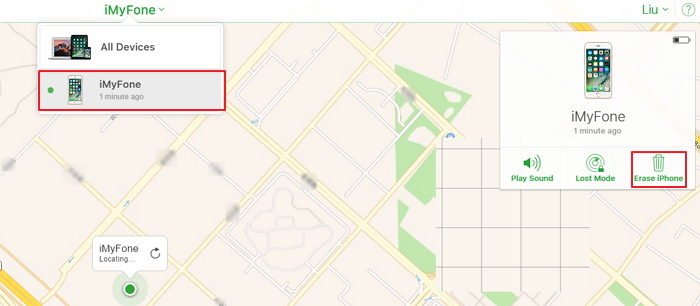
You can reset your iPad with iCloud’s Find My iPad. You can wipe your iPad without passcode by logging into the iCloud official website and searching for the Find My iPad feature.

Step 1. Go to icloud.com on any mobile or desktop device. Log in with your Apple ID and password.

Step 2. Find and click “Find iPhone”.

Step 3. In the Devices list, tap the device you want to erase. Note that any credit or debit cards set up for Apple Pay on your device will be removed, and other settings.

Step 4. Click “Erase iPad”. Then, enter your Apple ID password.


Using iCloud to wipe iPad without password comes with many limitations, but the most painful limitation is that if you don’t set up Find My iPhone feature before you lose your device, you won’t be able to use this service in wiping your iPad. Besides, your iPad should be connected to internet as well.

How to Wipe iPhone without iCloud Password >>
How to Wipe An iPad without Passcode, with Synced iTunes

If you’ve synced your iPad on iTunes in time past, then you can use iTunes to wipe your iPad without a passcode. This method will erase your iPad and it’s passcode, and if you’ve synced the device with iTunes, your device will be restored.

Step 1. Connect your device to the computer you synced with.

Step 2. Launch iTunes. If you’re asked for a passcode, connect to another laptop or use recovery mode.

Step 3. Wait for iTunes to sync your device and make a backup. When the backup process is complete, click “Restore iPad’.

Step 4. When you get to the Set-Up screen while restoring your device, tap Restore from iTunes backup.

Step 5. Select your device in iTunes and choose the relevant backup to restore from by checking the date and size.Jihosoft Android Data Recovery: the best Android Data Recovery software for Windows and Mac to recover deleted contacts, messages, photos, videos, WhatsApp and etc from Android devices.

Gihosoft Android data recovery Free is a super awesome software specialized in Android file recovery. With this program, you are able to recover deleted photos, music, videos, messages, contacts, call logs, WhatsApp messages, Viber chat history and more from Samsung, Huawei, LG, HTC, Motorola, Google, Oneplus, Sony, Lenovo, ZTE and other Android devices directly. Meanwhile, this Android data recovery software is available for both Windows and Mac platforms.For now, check:Free iTunes/iPhone Backup Extractor for iPhone, iPad

Jihosoft iTunes Backup Extractor free is a powerful tool to recover and extract important data from iPhone, iPad & iPod touch backup on Windows or Mac.


Find Your Next Dependable Charging Cord Here [Deals Hub]

There’s no such thing as too many charging cables. Fortunately, these days there are plenty of options when it comes to color and length. We...