Wednesday, September 19, 2018

How To Remove Instagram Followers Without Blocking


Back in the day’s people had limited options for staying connected with the people they know. But with modern and upgraded technology surely the tables have turned. As nowadays we don’t have to wait any longer if we want to talk to someone. Just grab your mobile and simply call or text the other person, because now the options are limitless. And with the launch of an enormous number of social networking sites, the communication process has become more quick and easy. As social media has the power to make you reach everyone you have met in your life.

Worth Reading: The Best Snapchat Like Face Filter Apps

And talking about social networking sites without mentioning Instagram is simply a crime. As Instagram is a simple, fun, and creative way to share photos and videos which is visible to everyone in your profile. Also, it is a great medium to connect with people through messaging and now with the latest update even with live calls. But there are times when this advantage of connecting with people turns out to be a disaster. Although Instagram has privacy settings which ensure that outside users have to first send you a request to be a part of your profile.


But still sometimes you just unknowingly add someone to your profile and you immediately realize it was a bad move. Earlier the most common way to remove someone from your follower’s list was to block them directly. But no one wants to be that rude with someone you know or even if you don’t know. So stop compromising and don’t hesitate, as there is one much easy and acceptable method where you can remove someone from your Instagram without even blocking them.


Note: If you have a public account on Instagram then you first have to switch your account to private to follow this steps.


Steps To Remove Instagram Followers Without Blocking:


Go to your Instagram profile.


Tap ‘Followers’ from the top of the screen.


Select the follower you want to remove and click on the three dots from the right corner.


You will get two option ‘Cancel’ and ‘Remove’.


Tap on ‘Remove’ and that person will be removed from your profile immediately.


Note: This method works for both Android as well as iPhone.


Related Posts:

8 Solutions to Fix Camera Not Working on Android

The Best 5 Call Blocker Apps for Android

Photoshop Alternatives: Best 6 Free Photo Editing Softwares for Windows

Top 10 Best Camera App for Android Phones?

How to Repair Broken Buildings or Other Objects in Photos

How to Clone Yourself and Other Objects in a Picture Without Photoshop


If you find this article helpful do like and share your views in the comment box.


Jihosoft Photo Eraser

Erase unwanted objects and perfect your amazing photos!

Remove objects from photos with Photo Eraser is almost as easy as taking a shot. Now you can use this tool to erase undesirable objects from your pictures, such as tourists, watermarks, logos, texts, blemishes and other unwanted things without real photo-editing skills required at all.


Jihosoft Android Data Recovery

The most powerful and professional data recovery software for Android that can restore deleted or lost contacts, photos, videos, audios, SMS, call logs, WhatsApp chat, Viber messages from any Android devices due to accidental deletion, virus attack, formatting. It supports all popular Android smartphones and tablets like Samsung, HTC, LG, Huawei, Motorola, Nexus, etc. In the meantime, you will be guided step by step if you never used this kind of tool before.


Tuesday, September 18, 2018

How to Restrict Apps on iPhone (iPad) in iOS 12/11? [2019 Solved]


How to Restrict Apps on iPhone (iPad) in iOS 12/11? [Solved] 2019


The Parental Controls also known as Restrictions on your iPhone allowing you to manage which apps, features, and content can and cannot be accessed on your iPhone. In other words, Restrictions give you the power to choose the apps other people can access or cannot access using your device. This feature also lets you set the Screen Time for particular apps.
Restrict Apps on iPhone with iOS 12

Restricting apps in iOS 12 is not similar to iOS 11. In fact, Restrictions are now under Screen Time in the Settings app. Here are the steps:

Step 1: Open Settings on your Home Screen and touch on Screen Time

Step 2: Click on Set up as Parent. There will be a App Limits interface.

Step 3: Check the apps you want to restrict and tap Set App Limit.


By doing so, you will have restricted the apps and they will not be visible on your Home Screen. You can re-enable them by going through the same process.
Restrict Apps on iPhone with iOS 11 and Below

If you own an iOS 11 device or below, you can restrict apps and prevent your kids from spending the whole day playing or chatting on your iPhone device. Here are the steps on how to restrict apps on iOS 11 and below:

Step 1: Open the Settings > General > Restrictions

Step 2: Click on Enable Restrictions. You will have to enter a passcode that you will use to either enable or disable the apps


Step 3: Toggle the Switch next to the specific app you would like to turn off.

Gihosoft Photo Eraser Erase unwanted objects and perfect your amazing photos!

If you lost data after you updated to a new iPhone, you can always use Gihosoft iPhone Data Recovery to get the data back from the old iPhone or backup.

Jihosoft Photo Eraser

Free iTunes/iPhone Backup Extractor for iPhone, iPad

iPhone Backup Extractor - Extract Data from iPhone Backup

Jihosoft Android Data Recovery: the best Android Data Recovery software for Windows and Mac to recover deleted contacts, messages, photos, videos, WhatsApp and etc from Android devices.

Tuesday, September 11, 2018

How to Jailbreak iOS 12


Can You Jailbreak iOS 12?

Posted by Rajesh Pandey on Sep 10, 2018 in Featured, Jailbreak iOS 12


In a few days from now, Apple will release iOS 12, the next major iOS software update for iPhone, iPad and iPod touch which includes performance and quality improvements, along with new features like Memoji, Screen Time, Siri Shortcuts, and more. Here’s the latest news and updates about iOS 12 jailbreak so you can take an informed decision when iOS 12 is released.
Current Jailbreak Status

You can currently jailbreak your iPhone, iPad or iPod touch if you’re on iOS 11.3.1 or lower. Electra Jailbreak supports iOS 11 – iOS 11.1.2 and iOS 11.2 – iOS 11.3.1. It does not work with iOS 11.4 or iOS 11.4.1 as Apple has patched the vulnerabilities used by the Electra Jailbreak in iOS 11.4 and iOS 11.4.1.
Changes in iOS 12 to Prevent Jailbreaking

Well-known iOS developer and researcher nullriver recently pointed out that Apple has made it harder to jailbreak iOS 12. That’s doesn’t come as a surprise. Apple has been upping the ante against its fight against jailbreakers. Apple has used this strategy to keep jailbreakers at bay. It not only releases new software updates, that fixes the vulnerabilities used by the jailbreaks but also introduces security changes in major software updates like iOS 12 that will make it even more difficult. It also stops signing the older iOS firmware file, which prevents users from downgrading back to the older iOS version that can be jailbroken.

He tweeted:

iOS 12 has a few things that’ll make jailbreaking harder:

– introduction of CoreTrust: this checks that all signatures come from Apple, supposedly stopping fake signing like ldid does

– vm_map_exec_lockdown: some form of userland ktrr, coming w/ the A12 (probably, unconfirmed)

He followed it up with another tweet providing some insight, and also clarifying that none of these changes are showstoppers, and didn’t seem like drastic changes:

– symbols are completely stripped in the iOS 12 kernelcache, will make patchfinders harder to make

None of these are show stoppers however, but we’re gonna need to play with it to see how it’s all implemented. Doesn’t seem anything too drastic yet.
iOS Jailbreak History

Apple has been making it difficult to jailbreak iOS devices.

In the case of iOS 10, the first iOS 10 jailbreak was released on December 21. Well-known hacker Luca Todesco released a beta semi-untethered jailbreak tool for iOS 10.1 known as Yalu+mach_portal for select 64-bit iOS devices. On January 26, 2017, he released a more stable version of Yalu jailbreak for iOS 10.2, which supported all 64-bit iOS devices except for the iPhone 7 and 7 Plus, which is only supported by the older, more unstable version for iOS 10.1.1.

In the case of iOS 11, the first iOS 11 jailbreak, to.panda was released on December 23, 2017 by Abraham Masri. On December 26, 2017, developer Jonathan Levin released LiberiOS, a developer-only jailbreak based on the async_wake exploit by Ian Beer for iOS 11.0 to iOS 11.1.2, but it did not include Cydia. Well-known hacker and developer Coolstar finally released Electra jailbreak for iOS 11.0 – iOS 11.1.2.
Jailbreak iOS 12 Status

There is currently no tool available to jailbreak iOS 12, which is currently in beta, and is likely to be released on September 12.

The good news is that iOS 12 has been jailbroken. In June, security researcher Liang Chen of KeenLab had managed to successfully jailbreak iOS 12 running on his iPhone X. As you can see in the YouTube video below, he gave a visual proof that his iPhone X running iOS 12 and then proceeded to launch the KeenLab jailbreak app which installed Cydia after jailbreaking iPhone X.

However, it was the first iOS 12 beta, so it remains to be seen if iOS 12 GM which will be released this week, and iOS 12 released to the public next week can still be jailbroken using the exploits used by researcher Chen to jailbreak iOS 12 beta.

It is unlikely that Chen will release the exploit behind this exploit since the KeenLab team is known to keep such exploits private for their own research and testing purposes. But it gives us hope that someone from the jailbreak community like coolstar or security researcher Ian Beer, who had discovered the exploits used in Electra Jailbreak to jailbreak iOS 11 – iOS 11.1.2 and iOS 11.2 – iOS 11.3.1, could discover them and use them to jailbreak iOS 12 released to the public.

Check Also: Top 5 Best File Transfer Apps for iPhone Users in 2019

Security researcher Simone Ferrini has tweeted over the weekend that he has managed to pwn iOS 12 beta 12, which is the latest beta release by Apple ahead of an upcoming Golden Master seed of iOS 12. He shared a video of the pwned iOS 12 beta:


It remains to be seen if it can be used to develop a jailbreak for iOS 12.

Based on the last two years, we may need to wait patiently for iOS 12 jailbreak. But it is not the case of if we can jailbreak iOS 12, but when can we jailbreak iOS 12.
Beware of Fake iOS 12 Jailbreaks

Fake news is not just affecting elections, the jailbreak community is also being targeted with fake jailbreaks. We are already seeing articles and YouTube videos which claim to jailbreak iOS 12. Any site claiming to have an iOS 12 jailbreak is a scam, so stay clear from such scam sites. Stay away from such tools as they can also potentially install malware on your iOS device. If there is a tool to jailbreak iOS 12, it will be available for free, and we’ll be the first to report it and share the jailbreak link.


What do you plan to do? Do you plan to install iOS 12 or do you plan to wait for iOS 12 jailbreak to be released before upgrading? Let us know in the comments below.


If you lost any important data on iPhone or iPad, like iMessages or photos, you may use Gihosoft iPhone Data Recovery to quickly recover deleted data for you.


Free iTunes/iPhone Backup Extractor for iPhone, iPad

Jihosoft iTunes Backup Extractor is a powerful tool to recover and extract important data from iPhone, iPad & iPod touch backup on Windows or Mac.


Monday, September 3, 2018

How to Wipe An iPad without Password via Find My iPad

How to Wipe An iPad without Password via Find My iPad

You can reset your iPad with iCloud’s Find My iPad. You can wipe your iPad without passcode by logging into the iCloud official website and searching for the Find My iPad feature.

Step 1. Go to icloud.com on any mobile or desktop device. Log in with your Apple ID and password.

Step 2. Find and click “Find iPhone”.

Step 3. In the Devices list, tap the device you want to erase. Note that any credit or debit cards set up for Apple Pay on your device will be removed, and other settings.

Step 4. Click “Erase iPad”. Then, enter your Apple ID password.


Using iCloud to wipe iPad without password comes with many limitations, but the most painful limitation is that if you don’t set up Find My iPhone feature before you lose your device, you won’t be able to use this service in wiping your iPad. Besides, your iPad should be connected to internet as well.

How to Wipe iPhone without iCloud Password >>
How to Wipe An iPad without Passcode, with Synced iTunes

If you’ve synced your iPad on iTunes in time past, then you can use iTunes to wipe your iPad without a passcode. This method will erase your iPad and it’s passcode, and if you’ve synced the device with iTunes, your device will be restored.

Step 1. Connect your device to the computer you synced with.

Step 2. Launch iTunes. If you’re asked for a passcode, connect to another laptop or use recovery mode.

Step 3. Wait for iTunes to sync your device and make a backup. When the backup process is complete, click “Restore iPad’.

Step 4. When you get to the Set-Up screen while restoring your device, tap Restore from iTunes backup.

Step 5. Select your device in iTunes and choose the relevant backup to restore from by checking the date and size.Jihosoft Android Data Recovery: the best Android Data Recovery software for Windows and Mac to recover deleted contacts, messages, photos, videos, WhatsApp and etc from Android devices.

Gihosoft Android data recovery Free is a super awesome software specialized in Android file recovery. With this program, you are able to recover deleted photos, music, videos, messages, contacts, call logs, WhatsApp messages, Viber chat history and more from Samsung, Huawei, LG, HTC, Motorola, Google, Oneplus, Sony, Lenovo, ZTE and other Android devices directly. Meanwhile, this Android data recovery software is available for both Windows and Mac platforms.For now, check:Free iTunes/iPhone Backup Extractor for iPhone, iPad

Jihosoft iTunes Backup Extractor free is a powerful tool to recover and extract important data from iPhone, iPad & iPod touch backup on Windows or Mac.


Wednesday, August 29, 2018

Best email app for iPhone in 2019
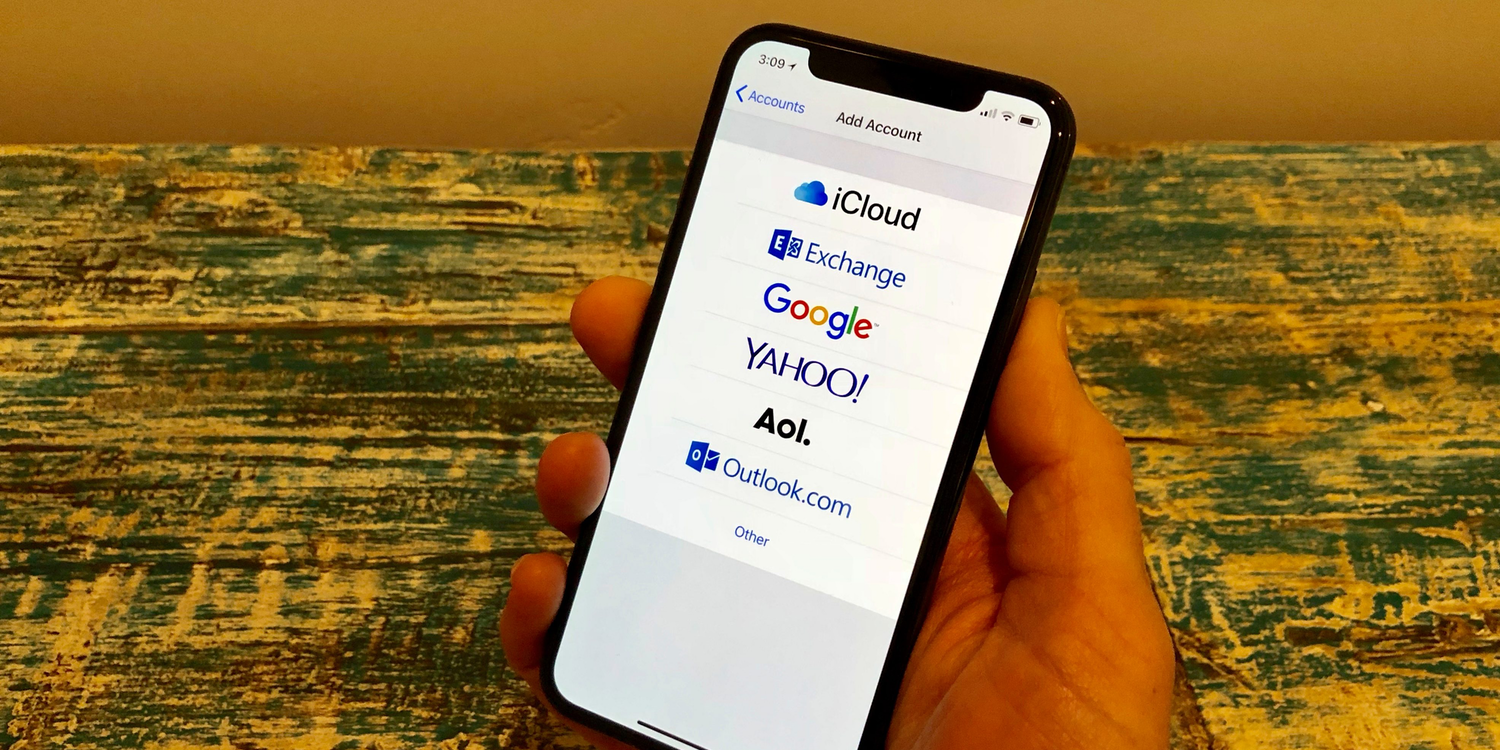


Best email app for iPhone in 2019


E-mail, like calendars, is something that is very personal. Over the years, email has morphed from a way to send electronic letters to turning into the digital hub of all we do online. Your Facebook account is tied to an email. Your Amazon account is tied to an email. Everything is tied to your email.

Email accounts are also difficult to change. Once you have it signed up with multiple services, moving from it is like moving your physical address. I’ve seen this first hand when folks leave the school I work at. I usually give them a few days to tie everything up, but many of them have used it as a personal account for years despite my warnings not to, so it becomes a difficult transition.

Like Calendar apps, there are many email apps for iPhone. I’ve tried and used just about all of them over the years. One of the questions people often ask me is: what’s your favorite email app for iPhone?You may also like:Gihosoft Mobile Transfer: 1 Click Data Transfer from Phone to Phone

I always say: it depends. I have my favorite, but it may not line up with the way you manage email. On the other hand, an app may have features you rely on that I don’t need. I’m going to show you each app, and I’ll give you my pick at the end. If you don’t agree – that is perfectly okay. Let me know what you think in the comments.

One thing to keep in mind, I am looking at iPhone only. Some apps work better if you use their macOS counterpart, but I am just looking at the iPhone experience.
Apple Mail
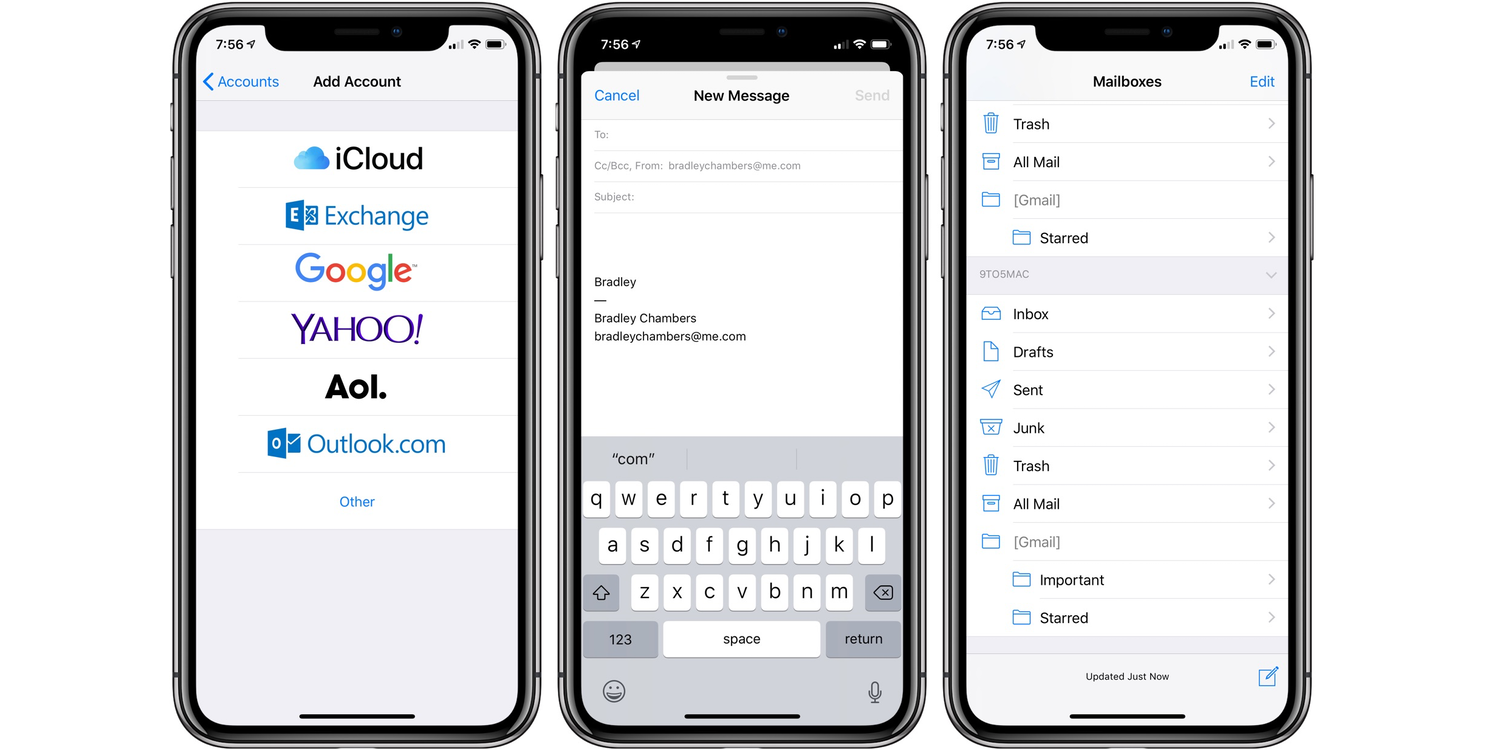


I’d dare to say that the Apple Mail email app is one of the most used email apps in the world today. It comes built into every iPhone, and it supports just about any account type you’d like. It’s easy to start new messages. It’s fast to do tasks like archive, delete, move to folders, etc. It’s easy to add attachments/photos to email. As far as traditional email clients go, it’s about the best you could ask for.

My concern is that a lot of other apps are innovating with email. Apple’s app covers the “stock” experience (sending, reading, etc.) very well, but it lacks snooze, quick replies, and other features that should be added. A few weeks ago, I wrote an article about four features I’d love to see come to Apple’s mail app. That list came out of this article. I won’t repeat those here, but I would go read it. Apple Mail works great, but a lot of apps are rethinking email where Apple is settling for the standard-quo. I know it’s difficult to innovate when a lot of users want the basic experience, but it’s long past time for Apple to add power user features to Apple Mail on iOS (and macOS).
Outlook – Free
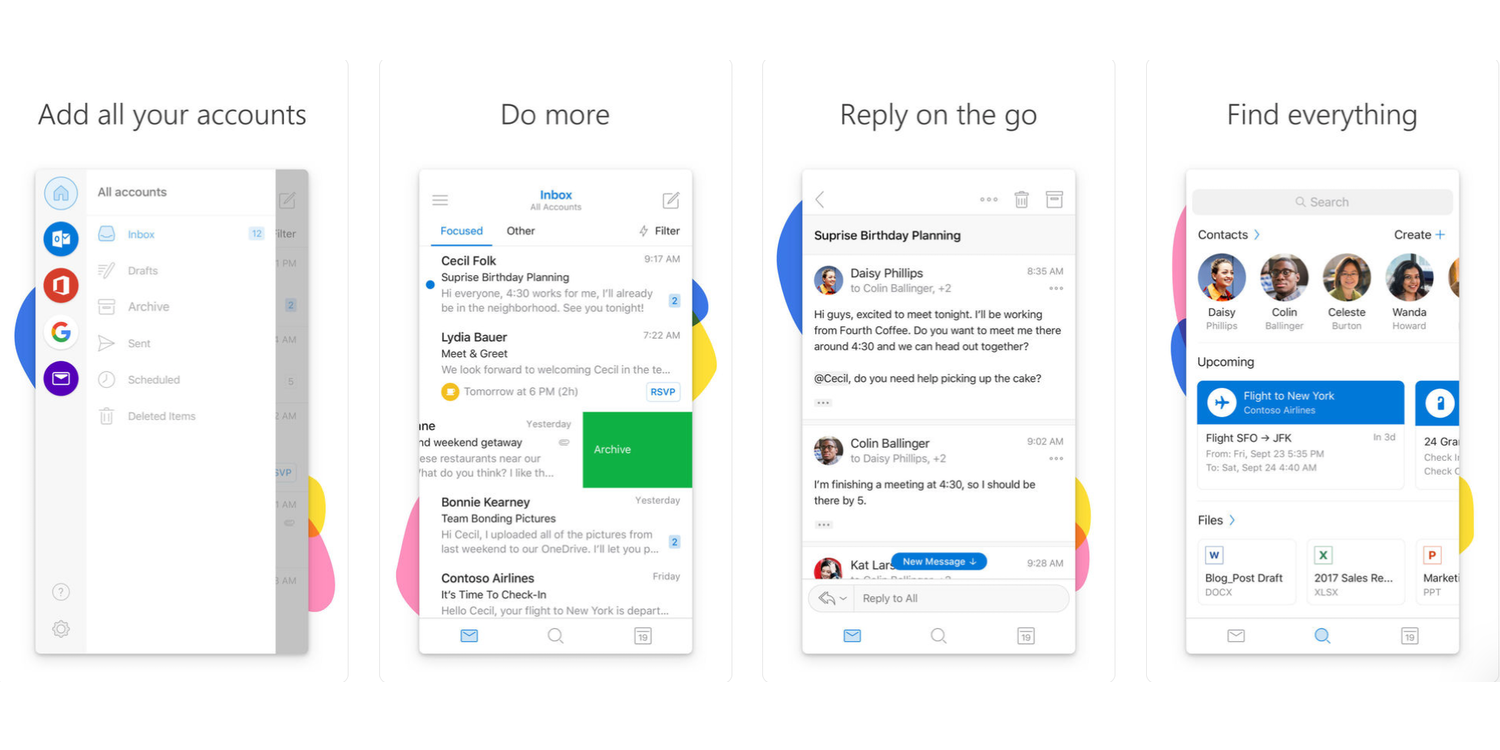


If you are used to Outlook on PC or Mac, you’ll be surprised how much different Outlook on iOS is when you first launch it. It’s not the traditional Outlook, but a reimagining of what it should be. Microsoft bought Acompli back in 2014, and launched the original version in 2015. They’ve kept enhancing it since then.

If you want to find an app that feels like Apple Mail+, Outlook is it. It includes a smart inbox (sort between important emails and non-important ones). It contains customizable swipes (delete, archive, etc). You can also schedule messages to show back up in your inbox. This feature is useful if you want to make an email disappear until you are back at work, etc.

It includes a built-in Calendar (negating the need for a separate calendar app) that can pull in iCloud, Google, Exchange, Outlook, and Yahoo calendars. Because it integrates everything into a single app, you can easily share availability for meetings right inside the app.

It also can work with third-party apps such as Google Drive, Dropbox, Evernote, Trello, and more.

Overall, Outlook is awesome. It’s free, works with all the major accounts you’ll have, and provides a lot of great features.
Airmail – $4.99
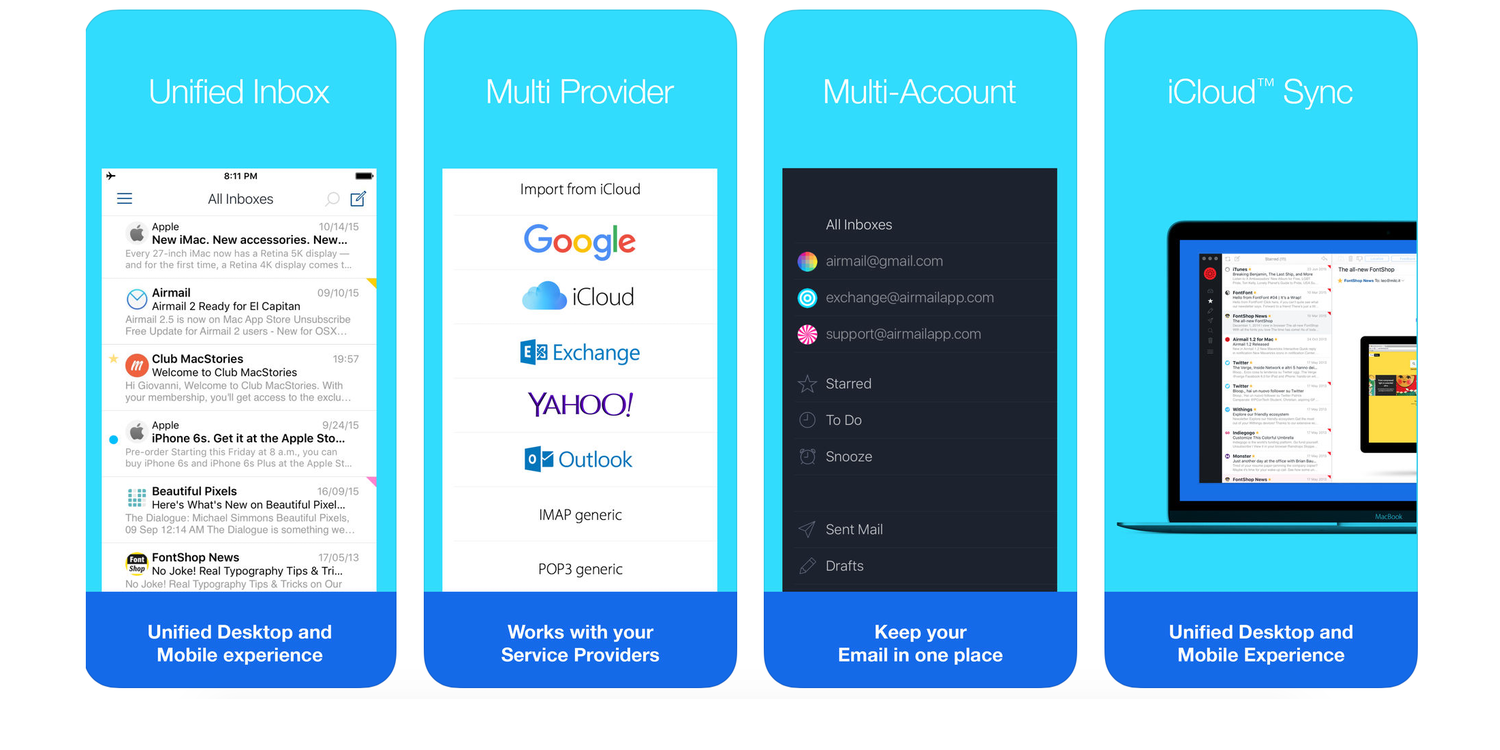


Airmail has been around for many years, and it’s one of the most common third-party mail apps that people mention. Airmail supports all the major email accounts like iCloud, Exchange, Outlook, Google, Yahoo, IMAP, etc. I originally tried Airmail when it was first released, and it has seen a constant stream of updates since then.

Airmail features an extensive list of apps to integrate with. The list includes Google Drive, Dropbox, OneDrive, Box, Trello, Asana, Omnifocus, Google Tasks, Evernote, Todoist, Drafts, Deliveries, Things, Calendar 5, and many more. Like Outlook, Airmail supports snoozing an email to another date/time. You can create a PDF from an email, mute/block senders, or create a to-do (Airmail offers a lightweight to-do list built in). The action list of items you can take on a message is long.

Design wise, Airmail has done a great job of staying with iOS design trends while having its unique style. It stands out from any other app you’ll use, and it’s overall pleasant to look at.

The last thing I want to say about Airmail is almost everything is customizable. If you want an email app with a lot of knobs to tinker with, Airmail is going to fit in with your workflows.
Spark – Free
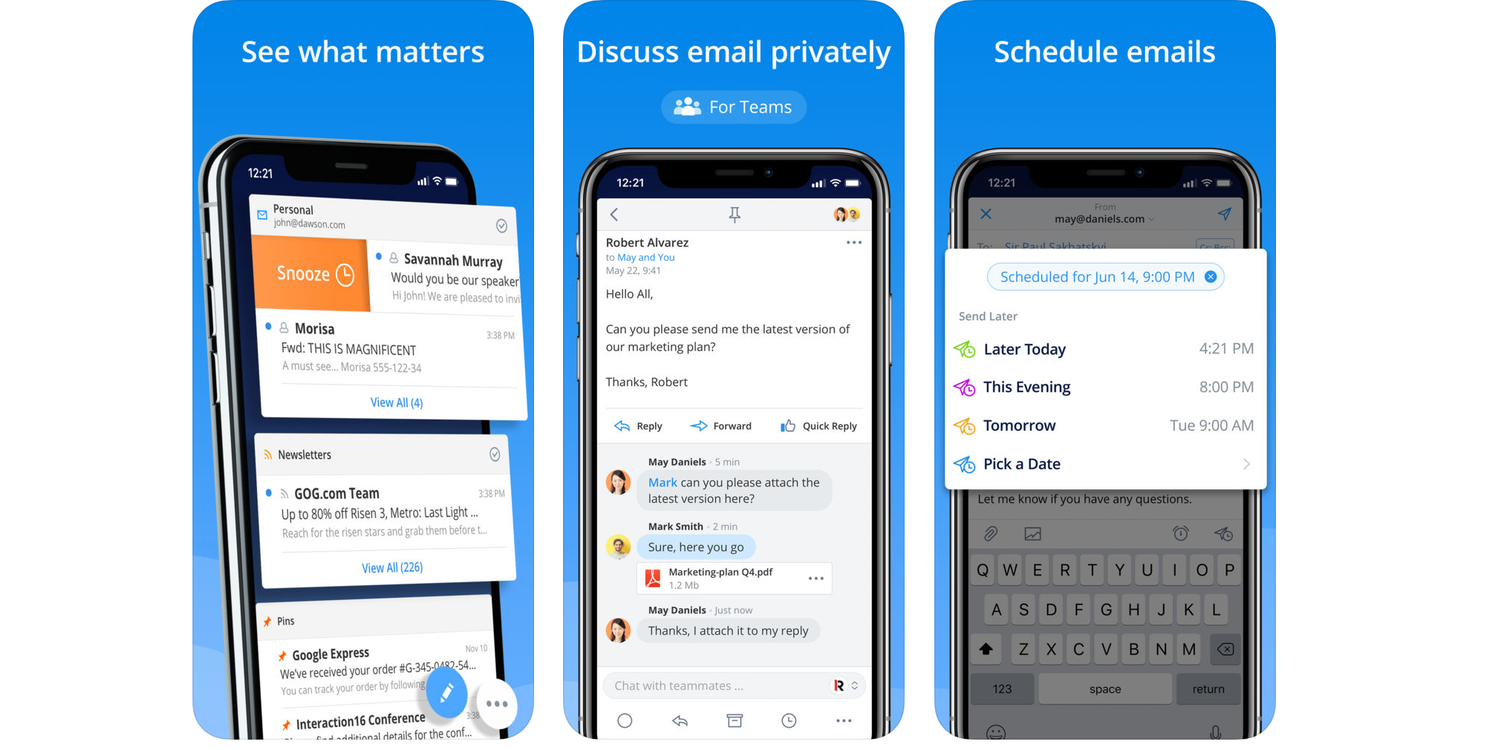


Spark is one of the newcomers to the third party email app market, but it has had constant enhancements since it was released. Their tagline is “Love your email again,” and it certainly does a great job of helping you take control of your inbox. It supports all the usual accounts like iCloud, Google, Yahoo, Exchange, Outlook, and IMAP.

Feature-wise, Spark includes a smart inbox to help organize your email into buckets like newsletters, pinned, new, seen, etc. It also includes the ability to snooze emails, send later, email follow up reminders, smart notifications, and tons of integrations with third-party apps (Dropbox, Google Drive, One Drive, etc.). You can also personalize the app to your heart’s content. Do you want a right swipe to delete and a left swipe to be pin? You can do that. Do you want a calendar button at the bottom? You can add that.

When Spark was initially released, I worried about the longevity of it due to the fact is was free. Over the years, we’ve seen many email apps released and be discontinued later, so I am always curious about the business model of the various apps. Spark now has a teams plan that answers that question for me. By signing your organization up, you can collaborate on emails together, talk about replies privately (without having to forward things back and forth), and create permanent links to email messages (helpful for linking to a CRM, etc.). A basic version of Spark for Teams is free, but they have paid versions (monthly per-user fee) with extra file storage, enhanced link sharing, and team roles and control.
Dispatch – $6.99

Dispatch has been around for many years. Its primary goal is to help you process your email quickly by deciding to delete, defer, delegate, generate actions, or reply with ease. It supports a number of third-party integration, and it has a beautiful design overall. Its major problems is that it lacks Exchange support or true push notifications.
Edison Mail – Free

Edison Mail is a great email app for the iPhone. One of the features I’ll praise is how fast it is. It includes an Assistant feature to help you organize your mail automatically.

Get organized with categories. The app’s assistant will automatically categorize messages for you to make them easier to find. Like peanut butter and jelly, some things go together.

Overall, it’s a fine app, but it doesn’t do anything to stand out among some of the other apps. It has your basic power user features like snoozing and customizable swipe options. It does include the ability to set an Undo Time Window (3–15 seconds), so you can quickly get your emails back if you regret them. It supports all the usual accounts like iCloud, Google, Yahoo, Exchange, Outlook, and IMAP.

One reason I am hesitant to use Edison Mail is that it’s free. I’d love to know more about their long term business plans.
Astro – Free

Astro is an enjoyable app to use, as it includes an AI assistant to help you handle your email faster. It includes a send later feature, reply tracking, open tracking, undo send, and important email reminders. Some of its unique features are how it helps you stay on track of your email. It can identify time-sensitive requests or due dates and help you follow up. It can also remind of you questions that are in your email. You can also integrate Astro in with Slack.

One of the significant downsides is that it only supports Google and Office 365 accounts at the moment. If you use those services, I would recommend you check it out.
Wrap Up

I’ve spent time with almost every email app I could find. Email is highly personal, and my preferences won’t match yours. I also haven’t considered various security protocols like PGP integration.

At the end of all my trials, I’ve come up with these recommendations: If you like the experience of Apple Mail, but want some additional features, Check out Outlook.

If you want a rethinking of the email experience, check out Spark. Spark’s team features are great for people with corporate accounts, and it’s great to see innovation still happening in email.

If you lost important notes on iPhone or iPad, check out Gihosoft iPhone Data Recovery. Gihosoft Studio is a professional team on data recovery for iOS devices. Also you can use it to recover deleted contacts, messages, photos and so on even without backup.

What do you think? Did I miss anything? Let me know in the comments.


Free iTunes/iPhone Backup Extractor for iPhone, iPad

Jihosoft iPhone Backup Extractor is a powerful tool to recover and extract important data from iPhone, iPad & iPod touch backup on Windows or Mac.

Related readings:


Best iOS Mirror Apps to Wireless Stream Your iPhone/iPad Display


Best Free Video Downloader Apps for iPhone/iPad in 2018


Top 10 Video Editor Apps For iPhone or iPad 2018


7 Little Tricks to Speed up iOS (Also Work with iOS 12)

7 Little Tricks to Speed up iOS (Also Work with iOS 12)


Trick 1. Turn off auto-updates: This auto-updating feature will make your apps stay up to date with many new features and less bugs. Usually app size varies from dozens of MBs to a hundred GBs, and updating these apps in the background will surely occupy much more RAM thus dragging down your iPhone speed, especially when a bigger iOS 12 is running.


Trick 2. Deactivate motion effects: The screen motion effects are not essential in improving user experience, as opposed to a slower responsive speed. You can check Reduce Motion option and inactivate this feature to make iOS 12 faster.


Trick 3. Clearing up running apps frequently: When you switch from one app to another, you think the app is closed. However, they are still running in the background for instant access. Too many apps running at the same time can make iPhone iOS 12 perform badly.


Trick 4. Reset Network Settings to Fix iOS 12 Slow InternetResetting your network settings can boost your internet’s speed to some extent. You can reset your network settings by going to Settings -> General -> Reset -> Reset Networking Settings. Tap confirm.


You may also like:Gihosoft iPhone Data Recovery


Must Read:Gihosoft Free Android Data Recovery


Must Read:Jihosoft iTunes Backup Unlocker


Jihosoft iTunes Backup Extractor free is a powerful tool to recover and extract important data from iPhone, iPad & iPod touch backup on Windows or Mac.


You may also like:

Gihosoft Total Video Converter is a professional all-in-one video tool that enables you to convert videos and audios into various different formats.

You may also like:online youtube downloader

Trick 5. Manage iOS 12 animation related issues iOS 12 has certainly got a number of different features in terms of animation. This makes the iOS run slower than usual. However, there is an easy to way to get yourself through this problem as well.

All you need to do is go to Settings -> General -> Accessibility -> Reduce Motion -> Turn on.

Trick 6. Optimizing iMessage to allow more efficient use of iPhone’s resources iMessage has a lot of new features such as upgraded stickers and emojis that can eat up most of your phone’s memory. You can adjust the usage through Settings as well.

Go to Settings -> Messages -> Low Quality Image Mode -> Turn on the Low Quality Image Mode.


Trick 7. Decrease the number of widgets on your home screen. iOS 12 has got a great deal of widgets with amazing features. However, having a lot of such widgets on the home screen can give your phone a hard time in terms of performance.

Therefore, remove the ones that you do not need much and only keep those that are necessary.
For all those methods above, of course, using a software should be more effective and that's the most simple way. More or less, other methods have some disadvantages. Save space and improve performance by compressing photos losslessly rather than restricting iPhones beauty and needlessly clearing apps all the time. With Umate, just one click does the trick.

Monday, August 27, 2018

Best Bitcoin Wallet Apps for iPhone and iPad 2019


Best Bitcoin Wallet Apps for iPhone and iPad

Wow, the best iPhone Bitcoin Wallet Apps. The Cryptocurrency, this word has attracted a lot of people towards it and still gaining attention. The trend of digital payments is enormously increasing day by day and peoples are also taking an interest in it. It is a bit difficult to mine bitcoin but to purchase a bitcoin with your traditional currency; it is very simple.

Once you have purchased a bitcoin, the first question will arise in your mind will be “which is the best application for my iOS to store bitcoin securely?”, because when you want to do a transaction with bitcoins, at that moment, the application should maintain consistency and security. Otherwise, there may be situations arises that someone stole your coin.Must Read:icloud lock tool


So here I am suggesting some of the finest apps for your iOS devices for better and safe transaction of bitcoins.
The Top 6 Best Bitcoin Wallet Apps for iPhone and iPad


#1. Blockchain-Bitcoin Wallet

The blockchain bitcoin wallet is the much popular digital wallet for storing bitcoins and for the transaction of bitcoins safely with anyone in the world. Creating a new wallet or access the old one is a very simple process in any iDevice and it can be done in seconds, and it is free. Any queries regarding anything you just have to tap into help center and they will solve your problem. – Supported by iOS 9 or later devices.
#2. CoinBase BitCoin Wallet

Coinbase is used to store bitcoins, litecoins, and ethereum, it is the first ever app which can store three different cryptocurrencies. You can make transactions with different cryptocurrencies like bitcoins, litecoins, and ethereum. Instantly purchase and sell litecoins, bitcoins or ethereum using credit cards, Paypal or debit cards. (Supported by iOS 10 or later)
#3. Copay BitCoin Wallet

The thing that differs Copay from other apps is multisignature wallet from Bitpay. Multi-signature wallet requires multi approvals to make any transactions, and that’s the reason which makes this app more defended against unauthorized activities. It allows us to control bitcoin wallets by different private keys and users. App for iOS 9 or later devices.
#4. Bread – Bitcoin Wallet

BreadWallet is quite simple to use even fresher’s can easily operate this app. If you had recently purchased bitcoin and you are not much aware of bitcoin apps and how it works then BreadWallet is perfect for you. Even when you need any help or if you have a query regarding app then the help center is always ready for you, just you need to tap once. The Bread Wallet is not only for iOS, but it is also supported by Apple Watch (WatchOS). Compatible with iOS 9.3 or later devices.
#5. Mycelium Bitcoin Wallet

The basic function of the Mycelium Bitcoin wallet is to receive or send bitcoins and complete your transactions with your finger-tips. This app is highly isolated which never let your private keys to leave your device unless you do. Rapidly gets connected to the bitcoin network and gives updates every moment. Top for iOS 8 and later for iPhone iPad and iPod touch.
#6. Airbitz Bitcoin Wallet

Every bitcoin app mainly focuses on selling, receiving or sending of bitcoins. But Airbitz is designed for maintaining your transactions and bitcoins isolated. The advantage of using Airbitz is it can prevent bitcoins from the 3rd party and also the Airbitz itself is not aware of your account. With the ease of mobile banking operate your bitcoins instantly within seconds. not for iOS 8 users cause App is compatible with iOS 9 or above iPhone and iPad.

You should also see post related Apps like given below:


Top 10 Video Editor Apps For iPhone or iPad 2018


4 Tips to Fix Unable to Install iOS 12 Update


How to Unlock a Disabled iPhone Without iTunes


Free iTunes/iPhone Backup Extractor for iPhone, iPad

Jihosoft iPhone Backup Extractor is a powerful tool to recover and extract important data from iPhone, iPad & iPod touch backup on Windows or Mac.

Find Your Next Dependable Charging Cord Here [Deals Hub]

There’s no such thing as too many charging cables. Fortunately, these days there are plenty of options when it comes to color and length. We...