Wednesday, November 21, 2018

How to Reset iTunes Library 2019


Reset iTunes Library 2019

How to Reset iTunes Library

If you want to reset iTunes Library on your Mac or Windows PC, then follow the steps outlined below.
#1. How to Reset iTunes Library on Mac

Step 1. Shut down iTunes on your Mac computer.

Step 2. Click on “Go > Home”.

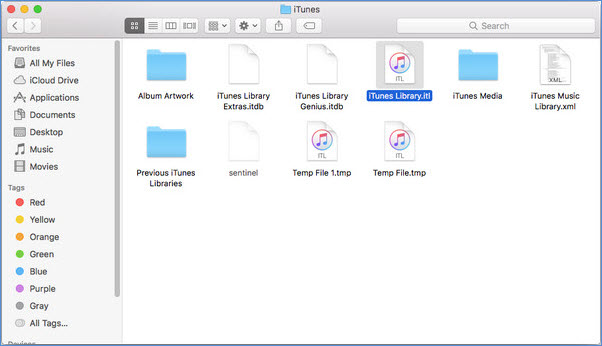
Step 3. Select the Music folder, and click the iTunes folder.


Step 4. You will see two files named “iTunes Library.itl and iTunes Music Library.xml,” delete both files from your Mac.

Step 5. If you’ve completed the above steps, then open your Mac and create your own music library.
#2. How to Reset iTunes Library on Windows PC

Step 1. Shut down your iTunes on your Windows PC.

Step 2. Open Windows Explorer, then click “Music > iTunes” folder.

Step 3. You will see two files named “iTunes Library.itl and iTunes Music Library.xml,” delete both files from your Windows PC.


Step 4. If you’ve completed the above steps, then open your PC and create your own music library.

Sponsor ads:

Gihosoft Free iPhone Data Recovery:https://www.gihosoft.com/iphone-data-recovery-free.html

Gihosoft iPhone Data Recovery Free

Free iPhone Data Recovery Software for Windows/Mac

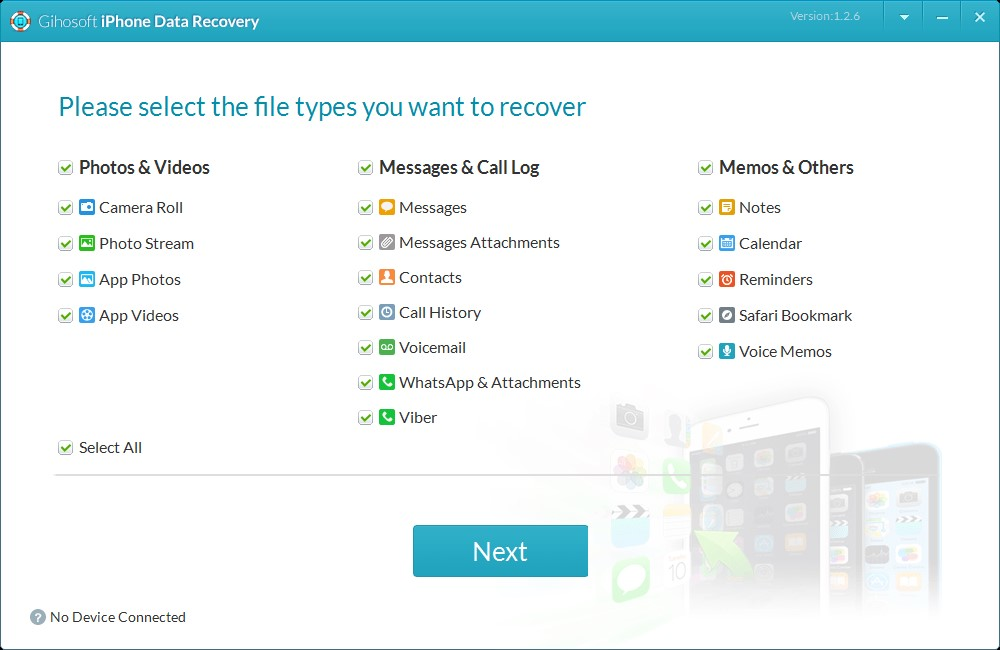
Recover up to 12+ types of files, including contacts, SMS, photos, WhatsApp, Viber, notes, etc.

Restore lost data from iOS devices directly or from iTunes and iCloud backup

Recover iPhone data lost due to iOS upgrade/jailbreak, accidental deletion, device lost or broken

Support all the latest iPhone, iPad and iPod Touch

Both Free and Pro version.

If you lost data after you updated to a new iPhone, you can always use Gihosoft iPhone Data Recovery to get the data back from the old iPhone or backup.You may also like: iphonerecovery.com
If you use android phones, please choose Gihosoft Android Data Recovery.
With Gihosoft Android Data Recovery, no longer afraid of data loss!


Tuesday, November 20, 2018

How to Tell If Apple Is Slowing Down Your iPhone


Part 1. What’s The News about Apple Slowing Down Old Phones

What causes your iPhone to slow down lies in its iOS software? According to Apple, iOS does this to counteract problems which are found in aging lithium-ion batteries. When a battery starts to age, it starts to lose its ability to hold a charge and this can also make it shut down unexpectedly after too much stress. So, Apple had a feature incorporated in it to help it avoid shutting down unnecessarily, instead, it slows down the performance of your iPhone.

The major problem lies with Apple, why? They tried to build a processor with faster speeds, something that needs a strong battery to accomplish, unfortunately, the batteries that come with these phones don’t have such abilities, that’s why you notice your phone starts to simply switch themselves off when this happens.
Part 2. How to Tell If Apple Is Slowing Down Your iPhone
1. Check Your iPhone Models

If you have an iPhone 6, iPhone 6S, iPhone SE, your iOS was likely affected with the iOS 10.2.1 update. For iPhone 7 users, changes came with the iOS 11.2 update.

To check which version of iOS you’re currently running, go to Settings > General > About.
2. Check Your Battery Health

The more you use your batteries, the less effective they’ll become.

To figure out how your battery health is, you can go to the details on “Battery Life” on your iPhone or download and battery app from the App store, which will tell you the details about your battery performance. If you see your device has poor batter health, then your iPhone is highly likely to be affected by the iOS update.
3. Check If Your iPhone Shut Down Suddenly

The other way to check if your iPhone was affected by the changes is to see if your iPhone has always shut down itself lately. If it do has such situations, then it might be affected.


How Can It Improve the Performance of Your iPhone?

1Free up Space on Your iPhone – it has over 25 advanced space saving analyst technologies, what the iPhone Data Eraser will help do is to scan and analyze your iPhone totally and figure out how much free iOS memory space can be freed.


2Clean up Deleted Files Permanently – You may have bunch of deleted files still hanging on your iPhone, which take up the space and slow down your iPhone. So it’s necessary to clean them out of your iPhone completely. Thanks to the iMyFone Umtae Pro, you can now rest assured that these files will be totally deleted.


3Completely Deletes the Fragments of Third-party Apps – We all know that there are lots of third-party apps that we install every day. What this software does is to help erase the private fragments which if not handled properly can cause your files (privacy) be compromised and improve the performance of your iPhone.


4Manage Your Unneeded Files – You may not notice that there lots of large files stored on your iPhone is useless already. So it’s time to clean them permanently, especially for those private data to speed up your iPhone.


2Other Useful Tips for It

(1) Back up Your Data – It would be better that you back up your data more often to avoid any data lost caused by some suddenly shut down.

(2) Use the Low Power Mode – Stay in this low power mode would help reduces the amount of power that your iPhone uses. It can also save the batter life on your iPhone.

(3) Turn off Unneeded Process - Turning off app background refresh and location services may also help speed up your device.

(4) Replace Your iPhone Battery – If your batter is in a really bad situation that you can even use your iPhone normally, then you can consider to get a new batter for your iPhone. Now you can replace your iPhone battery for $29 at the Apple Store if you have an iPhone 6, 6s, SE or 7.

Sponsor ads:

Gihosoft Free iPhone Data Recovery:https://www.gihosoft.com/iphone-data-recovery-free.html

Gihosoft iPhone Data Recovery Free

Free iPhone Data Recovery Software for Windows/Mac

Recover up to 12+ types of files, including contacts, SMS, photos, WhatsApp, Viber, notes, etc.

Restore lost data from iOS devices directly or from iTunes and iCloud backup

Recover iPhone data lost due to iOS upgrade/jailbreak, accidental deletion, device lost or broken

Support all the latest iPhone, iPad and iPod Touch

Both Free and Pro version.

If you lost data after you updated to a new iPhone, you can always use Gihosoft iPhone Data Recovery to get the data back from the old iPhone or backup.You may also like: iphonerecovery.com

If you use android phones, please choose Gihosoft Android Data Recovery.

With Gihosoft Android Data Recovery, no longer afraid of data loss!


Friday, November 16, 2018

How to reset your iPhone without losing anything 2019

How to reset your iPhone without losing anything


Here’s the last step on how to reset your iPhone without losing anything:

Step 1: Open iTunes on the device that you originally synced your phone with.

Step 2: Connect your device and select your phone.

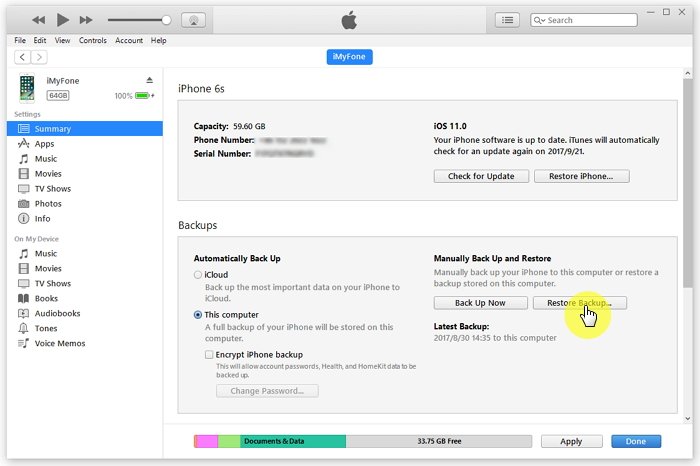
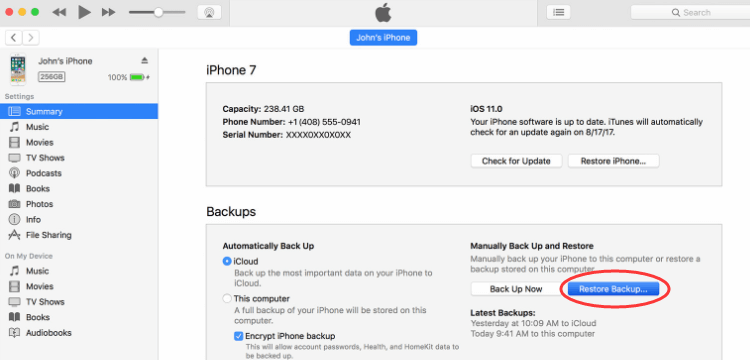
Step 3: Select "Restore backup" in iTunes and choose the most relevant backup date.

Step 4: Click "Restore" and wait for process to complete.


Option 2: How to Reset Your iPhone without Losing Anything – with Backup
- On iTunes:

Step 1: Connect your device to PC and open iTunes.

Step 2: Wait for iTunes to sync with your device and make a backup.

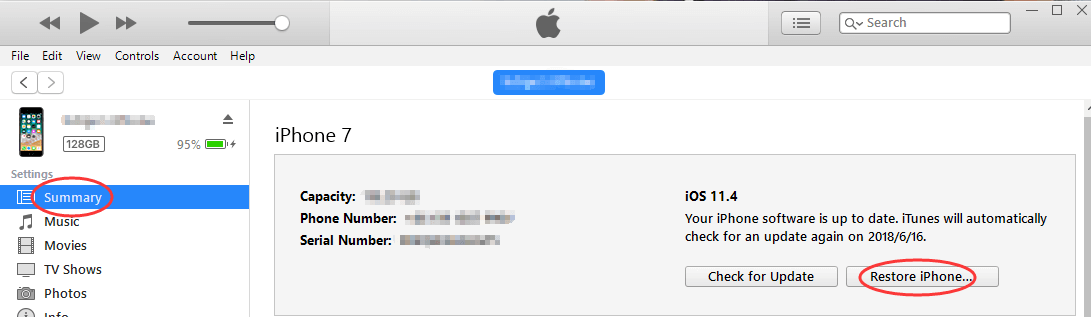
Step 3: In iTunes, click on "Restore".

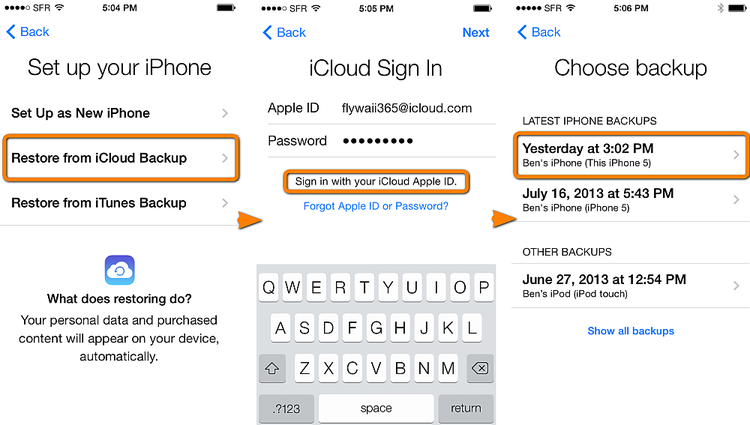
Step 4: When set up screen pops up, tap "Restore from iTunes backup".

Step 5: Select your device and choose the most relevant backup.


- On iCloud

Step 1: Go to iCloud.com

Step 2: Click on "All devices" and select the device you want to reset

Step 3: Click "Erase iPhone"

Step 4: Enter Apple ID and password, and wait for process to complete.

Step 5: Get your data back from the latest backup on iCloud you made.


Please note: you can only use the iCloud method to reset your phone if Find My iPhone is turned on.

Sponsor ads:

Gihosoft Free iPhone Data Recovery:https://www.gihosoft.com/iphone-data-recovery-free.html

Gihosoft iPhone Data Recovery Free

Free iPhone Data Recovery Software for Windows/Mac

Recover up to 12+ types of files, including contacts, SMS, photos, WhatsApp, Viber, notes, etc.

Restore lost data from iOS devices directly or from iTunes and iCloud backup

Recover iPhone data lost due to iOS upgrade/jailbreak, accidental deletion, device lost or broken

Support all the latest iPhone, iPad and iPod Touch

Both Free and Pro version.

If you lost data after you updated to a new iPhone, you can always use Gihosoft iPhone Data Recovery to get the data back from the old iPhone or backup.You may also like: iphonerecovery.com


Friday, November 9, 2018

How to Transfer iPhone Backup to New Computer with iTunes 2019


How to Transfer iPhone Backup to New Computer with iTunes

One of the more obvious methods for those looking to transfer iPhone backups from one computer to another will be to make use of iTunes. iTunes allows for data backup from iPhones and other iDevices. If you have just gotten a new computer, you can transfer your backup data to he new computer by locating the backup file on your computer. Note that iTunes does not allow for preview and selective backup of files.

Steps to transfer iPhone backup to New computer with iTunes:


Locate the iTunes backup file on your Windows or Mac PC.


1) Mac: /Library/Application Support/MobileSync/Backup/


2) Windows XP: \Documents and Settings\(username)\Application Data\Apple Computer\MobileSync\Backup\


3) Windows Vista and later: \Users\(username)\AppData\Roaming\Apple Computer\MobileSync\Backup\


Insert your USB device into your old computer and copy the backup folder to the drive.


Remove USB from old computer and plug into the new PC.


If you don’t already have iTunes on your new Windows PC, download and install it.


Locate the iTunes backup folder on the new computer and copy your backup file from the USB drive into the new computer.If you lost data after you updated to a new iPhone, you can always use Gihosoft iPhone Data Recovery to get the data back from the old iPhone or backup.


You may also like:iPhone Backup Extractor - Extract Data from iPhone Backup


Must Read:Jihosoft iTunes Backup Unlocker
Limitations:


iTunes does not allow preview and selective transfer, the whole backup file will be copied altogether.


You can't backup photos, videos, and documents from third party apps.
How to Transfer iPhone Backup to New Computer with iCloud

An alternative way to backup your iPhone files is to back them up to iPhone’s cloud storage system, iCloud. This will make your backup files available to you at any point in time, on any of your devices.


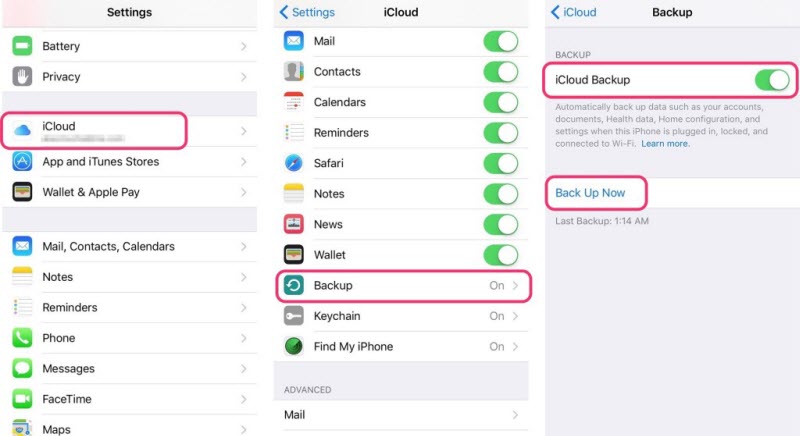
Connect your iPhone to WIFI.


Go to settings and select iCloud.


Turn on “iCloud Backup”


Select “Backup Now”


Then you can access your backup files on your new computer by downloading iCloud for Windows on the PC.


Limitations:


It's not a convenient method to open the backup on Windows PC.


You will constantly require internet connection to access it.


Monday, October 29, 2018

2 Ways to Turn Off iPhone Xs (Max) 2019


2 Ways to Turn Off iPhone Xs (Max)

The following methods are available for iPhone Xs (Max), iPhone XR and iPhone X.
Turn off iPhone Xs (Max) with Buttons

As mentioned above, you cannot turn off iPhone Xs via the Side button because it summons Siri instead of showing the “slide to power off” option. You can however, turn off the device with the combination of Side button and Volume button. Here are the steps on how to do this:


Press the Side button and Volume Down or Up button and hold them.


Once the screen changes, release the buttons and slide the top toggle to the right. The device will be turned off.


Turn off iPhone Xs (Max) from Settings

Apart from shutting down iPhone Xs via Side and Volume Down/Up buttons, you can also turn it off via the Settings app. You will need to crawl through a couple of pages in the Settings app but the overall process is pretty simple.


Open Settings app on your iPhone Xs.


Navigate to General > Shut Down.


Now slide the top toggle to the right to turn off the device.


Turning on iPhone Xs is pretty easy once it has powered down. You simply need to press and hold the Side button for a few seconds until the Apple logo appears on the screen.
Bonus Tips to Manage Your iPhone Xs Easier
How to Force Restart iPhone Xs (Max)?

You will need to force restart your iPhone Xs if its screen gets frozen or you encounter a black screen problem. The method to force restart iPhone Xs is also different from force restarting iPhone 8 series and below.If you lost data after you updated to a new iPhone, you can always use Gihosoft iPhone Data Recovery to get the data back from the old iPhone or backup.

You may also like:iPhone Backup Extractor - Extract Data from iPhone Backup

Must Read:Jihosoft iTunes Backup Unlocker
Steps to Force Restart iPhone Xs


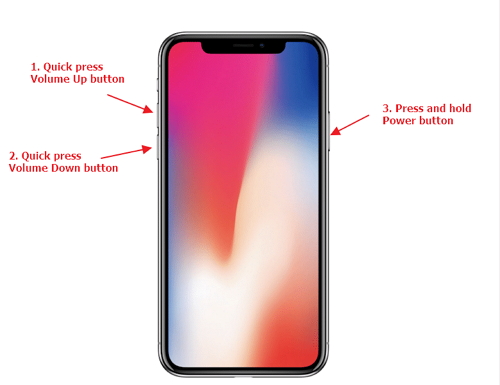
Press the Volume Up button and then quickly release it.


Press the Volume Down button and then quickly release it.


Now press the Side button and hold it until the device restarts.


Thursday, October 25, 2018

2019 Top Guide Recover Missing WhatsApp Pictures


2019 Top Guide Recover Missing WhatsApp Pictures

1 Recover Missing WhatsApp Pictures with iTunes Backup

In this section, let’s see how to recover deleted iPhone WhatsApp pictures using iTunes.


As the first step of this process, you should open iTunes on your computer. Then, you should connect the iOS device to your computer with a USB cable. If prompted, provided the passcode or trust the computer according to the onscreen steps.


You should now select the iOS device when it appears in iTunes. Then, select Restore Backup in iTunes. Be sure that your iOS version is up-to-date to proceed.


You should now select the backup you need to restore simply by looking at the data and size of the backup. Click on “Restore” option and wait for the process to be completed. If prompted, provide the password for your encrypted backup.


Be sure that the device stays connected to the computer until the process is completed.


2 Recover Disappeared WhatsApp Pictures with iCloud Backup

If you need to recover data like deleted WhatsApp data from your iCloud backup, here’s how to do it.


Turn on the iOS device and then you will notice a welcome screen. If your have configured the device already, you should erase the contents of the device before proceeding to the next level. Now, you should do according to the onscreen setup steps and reach “Apps & Data Screen”. You should then tap Restore from iCloud Backup.


Use your Apple ID and sign into the iCloud account. Now, you should select a backup simply after referring to the data and the size. The transfer will then start. However, if it requires a newer iOS version, you must update the existing version.


Sign in to the Apple account in order to restore the apps.


Now, you should wait until the process is completed.


Finish the setup on the device. If you have a large backup to restore, the process may continue as a background process.


If you lost data after you updated to a new iPhone, you can always use Gihosoft iPhone Data Recovery to get the data back from the old iPhone or backup.

Must Read:Jihosoft iTunes Backup Unlocker
You may also like:online youtube downloader

Saturday, October 13, 2018

What is iTunes Dark Mode and How to Use it?


What is iTunes Dark Mode and How to Use it?

What is iTunes Dark Mode?

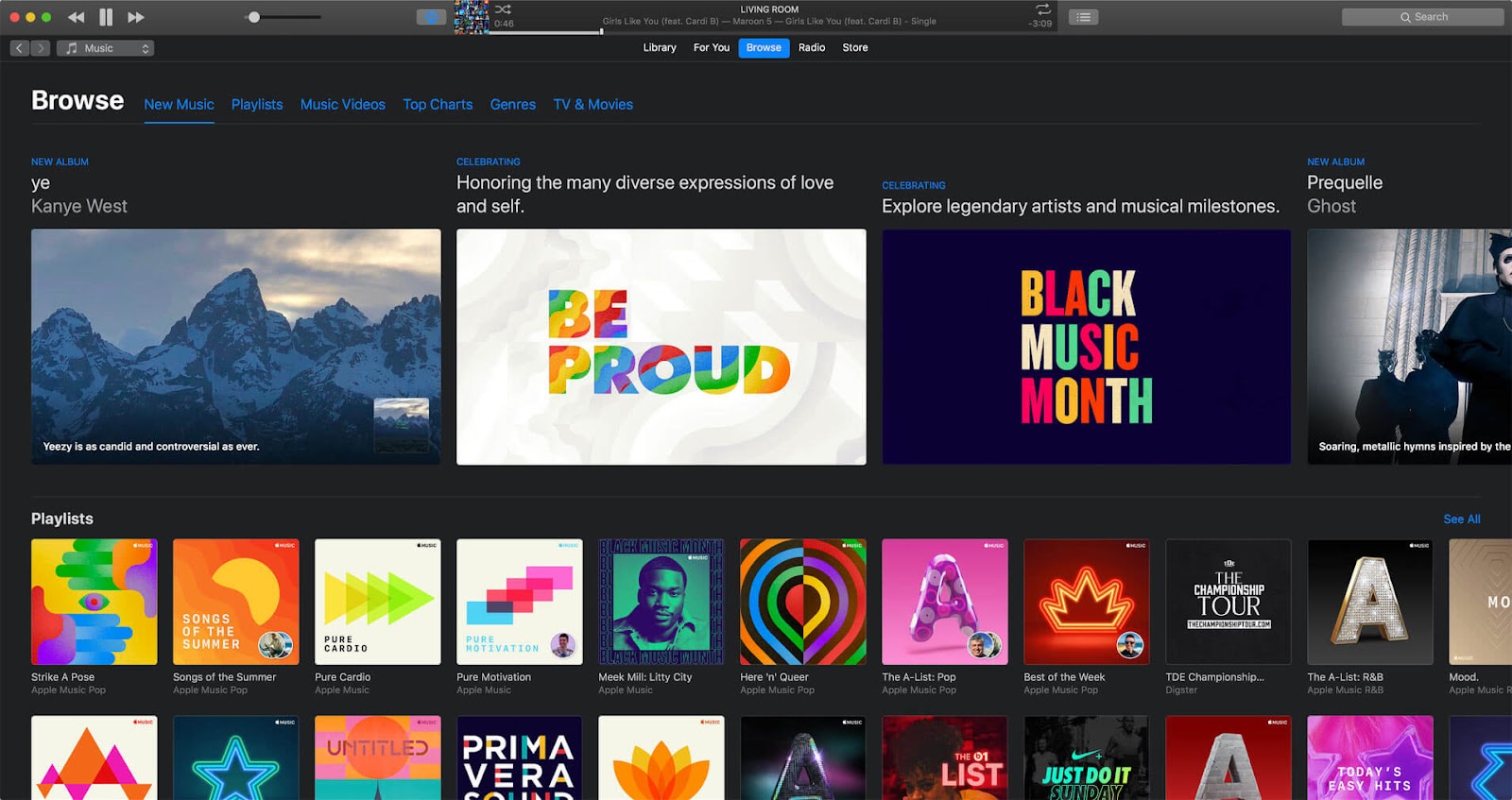
In macOS Mojave’s Dark Mode, most of your operating system’s bright features will go dark of gray. This includes features like the dock, trashcan, menu bar, and system panel. Some macOS Mojave apps will also share in this feature, and such apps include iTunes, Safari, App Store, News, etc.

Therefore, with iTunes Dark Mode, using iTunes at late hours of the night won’t have much strain on the eyes. It will be very handy for those who play songs with iTunes for lengthy periods, and at late hours of the night.
How to Use iTunes Dark Mode

If you’ve been waiting so long for iTunes dark mode, which would come with macOS Mojave on September 24, then it will be awesome if you can learn how to use/enable iTunes dark mode on Mac or PC before the official release date Mac’s next operating system.
#1. iTunes Dark Mode on Mac

Apple Inc. has finally added Dark Mode to macOS Mojave. This feature will cut across all Mac features and software to dim many of the screen elements from their usual blinding white to soothing dark tone.

Here is how to set up dark mode on Mac:

Step 1. If you skip past the prompt to set up dark mode when installing macOS Mojave, then click the Apple logo at the top left corner of your window.

Step 2. Select “System Preferences > General”.


Step 3. Under Appearance menu, select the Dark Mode preview. The dark mode preview will show you the levels of dark background that’s available.

However, if you want to have dark mode only at night, you can go for Dynamic Desktop option to achieve that.

Step 1. Go to “System Preferences > Desktop & Screen Saver”.

Step 2. Select a desktop with a curvy icon on it; that’s a dynamic desktop.
#2. iTunes Dark Mode on Windows PC

macOS Mojave now has a dark mode, but Windows 10 users have been enjoying this feature for quite a time now. Windows’ built-in dark mode turns windows black and changes the text and icon to light colors. On Windows, you can activate dark mode just with few steps, and we’ve outlined the steps in the following paragraphs.

Step 1. Search for “Settings” on the Windows 10 search bar and launch it.

Step 2. Click “Personalization”. This feature will display a paintbrush on the computer screen.

Step 3. Click “Colors > Choose your app mode > Dark > and check the bubbles beside the dark”.

Step 4. Pick an accent color at the top of the “Color” window.


Gihosoft Photo Eraser Erase unwanted objects and perfect your amazing photos!

If you lost data after you updated to a new iPhone, you can always use Gihosoft iPhone Data Recovery to get the data back from the old iPhone or backup.

Must Read:Jihosoft iTunes Backup Unlocker

Jihosoft Photo Eraser

Free iTunes/iPhone Backup Extractor for iPhone, iPad

iPhone Backup Extractor - Extract Data from iPhone Backup

You may also like:online youtube downloader

Find Your Next Dependable Charging Cord Here [Deals Hub]

There’s no such thing as too many charging cables. Fortunately, these days there are plenty of options when it comes to color and length. We...