Friday, February 22, 2019

How to Send and Receive Apple Pay Cash via Message in iOS 11/12 2019


If you take a look at the iOS 11 preview on the Apple Website, you will be amazed by the many new features iOS 11 is set to bring to your iOS device. From augmented reality apps to new Apple music features and a new customizable Control Center, Apple is not kidding when they say, it will completely change the way you use your iPhone and make the iPad more capable.
Yet one of the most useful, not to mention one of the coolest features of the new iOS 11 is the Peer to Peer money transfer feature that can be affected rights on the Messaging app. This means that you send cash or buy something instantly from the Message app using Apple Pay. If you’re wondering how it works, the following is a guide to help you use the feature when iOS 11 becomes public in September.
1. Set Up Apple Pay
Before you can use the new peer to peer payment feature from Apple Pay, you must have set up Apple Pay to begin with. Most people already have but if you’re one of those who is yet to get on the bandwagon, here’s how to set up Apple Pay on your device.
Step 1: From our device’s settings, tap on “Wallet & Apple Pay”
Step 2: Tap on “Add Credit or Debit Card” and then follow the instructions to set it up.


2. How to Send Apple Pay Cash via iMessage in iOS 11/12

Now that you have set up Apple Pay, follow these simple instructions to send Apple Pay Cash to a friend via iMessage.

Step 1: Open the Messages app on your device and open the conversation with the person you want to send cash to.

Step 2: In the new app drawer at the bottom, you should see the “Apple Pay Button.” Tap on it.

Step 3: Enter the amount you would like to send to your friend. Follow the on-screen instructions to send the money and then use TouchID to authenticate the transaction.


Tip 1. How to Manage Money you Receive from Friends

When you receive money from your friends in this way, your device will store the cash a digital Apple Pay Cash Card that you can then use to make purchases, send to other friends or transfer to your bank.Sponsor ads:Schedule Text Messages on iPhoneMust Read:If you lost data after you updated to a new iPhone, you can always use Gihosoft iPhone Data Recovery to get the data back from the old iPhone or backup.

Gihosoft Free iPhone Data Recovery:iphonerecovery.com

If you use android phones, please choose Gihosoft Android Data Recovery
Tip 2. Send Apple Pay Cash Using Siri in iOS 11/12

You can also use Siri to send money to friends using this Peer to Peer payment feature. Simply activate Siri and ask it to send money to a friend. It will ask you how much you want to send. Once you’ve confirmed the amount, follow the instructions and authenticate the transaction using Touch ID.
Tip 3. Recover Deleted Messages from your iPhone

With this new peer to peer payment feature, your messages will now be more important than ever. They will essentially be a receipt or proof of any transaction you make in this way and as such it wouldn’t be prudent to lose the messages. But sometimes data loss can be out of your control and what follows is usually a way to recover the deleted messages.

Delete WeChat Documents and Data from iPhone Manually 2019


Delete WeChat Documents and Data from iPhone Manually

Here are some tips on how to manually remove some of this data from WeChat:
To Clear WeChat Cache


Open WeChat on iPhone.


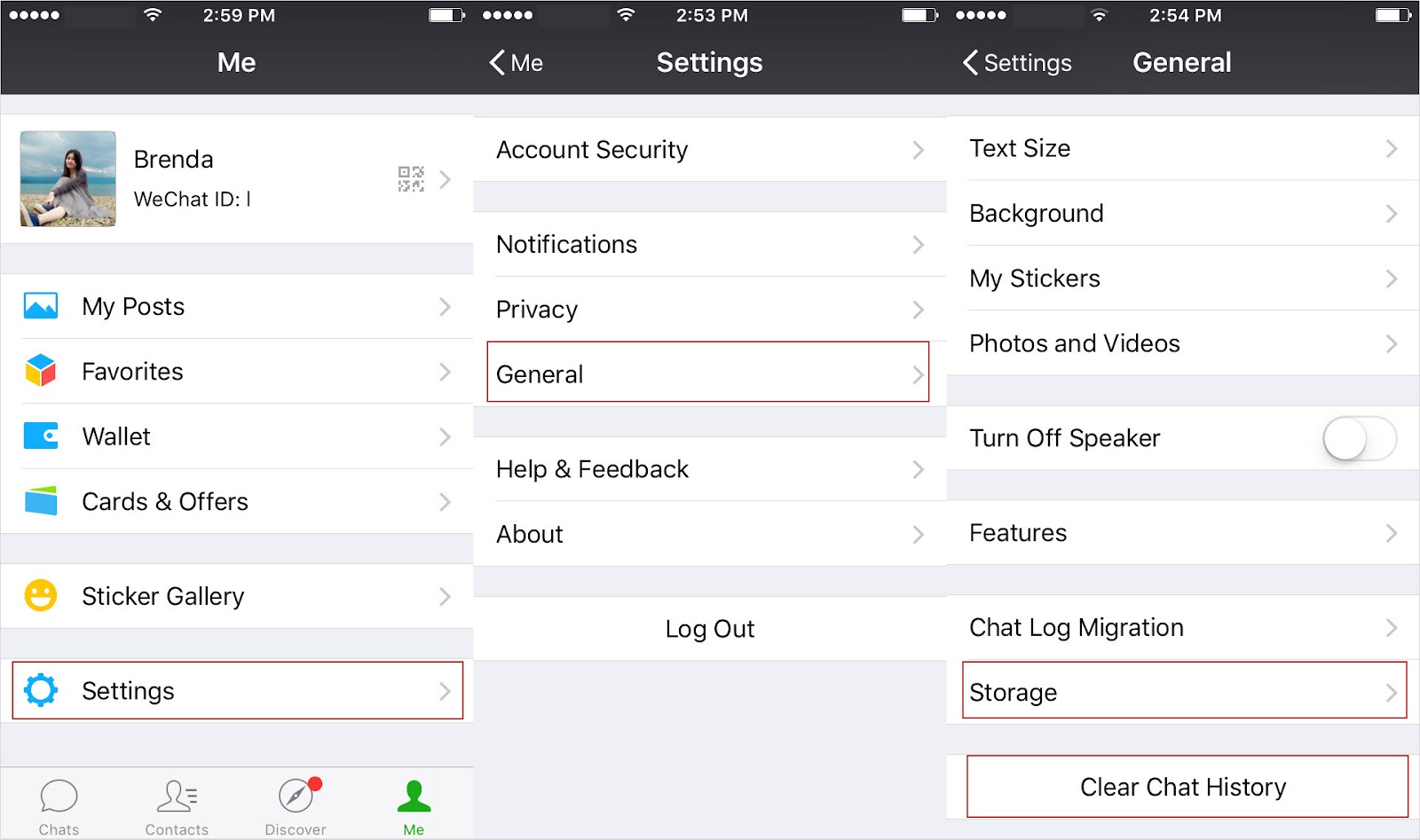
Tap Me > Settings > General > Storage.


WeChat will now automatically delete the cache information.
To Clear WeChat Chat History


Open WeChat on iPhone.


Go to Me > Settings > General.


Tap “Clear Chat History.”Gihosoft Free iPhone Data Recovery:iphonerecovery.com


To Delete WeChat Chats (Just a Single Conversation)


Open WeChat on iPhone.


Go to “Chats” at the bottom.


Find the chat that you want to delete and swipe it to the left.


Tap “Delete.”

Please note: Deleting WeChat chats using the above methods is still recoverable by special tools. The data is still on your iPhone if you manually delete it like this. If you want your WeChat data to be unrecoverable, then you will have to use a WeChat eraser like iMyFone Umate Pro.


Verdict

Do you value your privacy? Do you want more space on your phone? Probably most of us do, which is why it’s so important to delete private and junk data from the WeChat application. Sponsor ads:

Gihosoft Free iPhone Data Recovery:iphonerecovery.com

Free iPhone Data Recovery Software for Windows/Mac

Recover up to 12+ types of files, including contacts, SMS, photos, WhatsApp, Viber, notes, etc.

Restore lost data from iOS devices directly or from iTunes and iCloud backup

Recover iPhone data lost due to iOS upgrade/jailbreak, accidental deletion, device lost or broken

Support all the latest iPhone, iPad and iPod Touch

Both Free and Pro version.

If you lost data after you updated to a new iPhone, you can always use Gihosoft iPhone Data Recovery to get the data back from the old iPhone or backup.

Top 10 Best FRP Bypass Tools to Bypass Google Account on Android Device 2019

Worth reading:download youtube 1080p

If you use android phones, please choose Gihosoft Android Data Recovery

Jihosoft Android Data Recovery: the best Android Data Recovery software for Windows and Mac to recover deleted contacts, messages, photos, videos, WhatsApp and etc from Android

Thursday, February 21, 2019

How to Know If Someone Has Blocked You on WhatsApp 2019


1 Use the Tips WhatsApp Offers to Users

You might have been blocked if you noticed any the following signs when you click on a contact on WhatsApp:

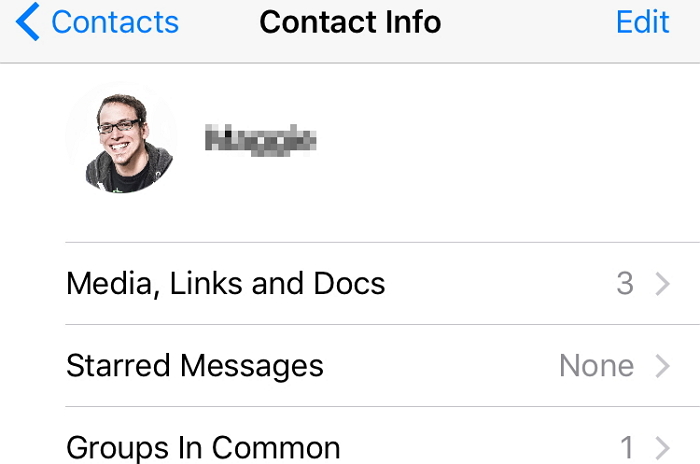
1. If you cannot see a contact's "last seen" or "online" status in the chat window, it could be an indication you have been blocked.

2. If a contact updated his profile photo and you do not see it except the old profile picture, it is not out of place to believe you have been blocked.

3. If you see just one check mark (message sent) whenever you send a message to a contact. Generally, two check mark (message delivered) often show if a contact has not blocked you.

4. If you place a call to the contact and it is not going through.


You can use the tips above to know if someone has blocked you. However, there is a drawback. Because of privacy, you cannot be 100% sure if you have been blocked since WhatsApp will not confirm that to you. WhatsApp plainly stated that they cannot confirm to you directly, thus you might be in the dark as to whether your contact blocked you or not.


2 Combine the Technique WhatsApp Offers with the Psychology

This is another method that can be used to find out if you have been blocked. Sometimes, it might just be that the person has not been using WhatsApp for a long period. If that is the case, you may notice one or all of the signs in the strategy 1 above. However, you want to be sure. Therefore, follow the steps below to confirm.


Open your WhatsApp and check the contact at least twice a day.


Keep checking twice a day for 7 days.


If you notice changes in the profile photo, you likely have not been blocked.


Keep checking. If you do not see an update in profile photo or it disappears entirely, just know you have been blocked.


Check again to see if the person uses WhatsApp several times a day and the two marks do not show green color (seen). You might have been blocked if you did not see it upon repeated checks.


3 Start a Group Chat to Confirm Whether You Have Been Blocked

Another way to know if someone has blocked you is to start a WhatsApp group. The previous strategies and steps above might have left a small room for doubt. If you want to be undoubtedly sure someone has not blocked you, simply start a group.Gihosoft Free iPhone Data Recovery:iphonerecovery.com


Go to your WhatsApp and start a new group.


Look for the contact you thought could have blocked you and try to add the contact to your newly-created group.


It should be easy to add the contact straight away if you have not been blocked.


You may see a message like "You are not authorized to add this person" if you have been blocked.


4 Confirm Whether Someone Has Not Blocked You with a Different Phone

Using different phone to access your friend's WhatsApp is also a strategy. If someone has not blocked you and you want to be so sure, how may you know? Well, you need to confirm again. The steps below can help.


Pick up another phone if you have and open WhatsApp.


Look for the contact and try to add.


Take note of how the contact's profile appears. Did you see the DP, Last Seen or any details that match with what you saw in your first phone? If all details are the same, it might be that you have not been blocked.


Check and if the DP, Last Seen, and other details are showing. If so, you have been blocked.


5 Check the Status of Contact's Read Receipts in Group Chat and Personal Chat

There is yet another method to find out if you have been blocked and that is checking your contact read receipt in the group chat or your private chat. How may you do that?


Go to your group chat.


Check the contact. Look to see if previous messages you sent show receipt or read with green double check marks.


If the double check marks are green, you have been blocked.


Check to see if the two check marks are grey, if so you have not been blocked.


That is it! All the strategies above can help you know if you have been blocked or not. However, if you were blocked, it could lead to data loss. You do not want that to happen, do you?

Sponsor ads:

Gihosoft Free iPhone Data Recovery:iphonerecovery.com

Free iPhone Data Recovery Software for Windows/Mac

Recover up to 12+ types of files, including contacts, SMS, photos, WhatsApp, Viber, notes, etc.

Restore lost data from iOS devices directly or from iTunes and iCloud backup

Recover iPhone data lost due to iOS upgrade/jailbreak, accidental deletion, device lost or broken

Support all the latest iPhone, iPad and iPod Touch

Both Free and Pro version.

If you lost data after you updated to a new iPhone, you can always use Gihosoft iPhone Data Recovery to get the data back from the old iPhone or backup.

Top 10 Best FRP Bypass Tools to Bypass Google Account on Android Device 2019

Worth reading:download youtube 1080p

If you use android phones, please choose Gihosoft Android Data Recovery


Jihosoft Android Data Recovery: the best Android Data Recovery software for Windows and Mac to recover deleted contacts, messages, photos, videos, WhatsApp and etc from Android

Wednesday, February 20, 2019

How to Transfer Movies to iPad/iPhone with iTunes 2019

Transfer Movies to iPad/iPhone with iTunes 2019
How to Transfer Movies to iPad/iPhone with iTunes

Your first option is to transfer using iTunes:
Step 1: Transfer Movies from Computer to iTunes


Launch iTunes on computer.


Click “Music” icon from the top and change it to “Movies” library.


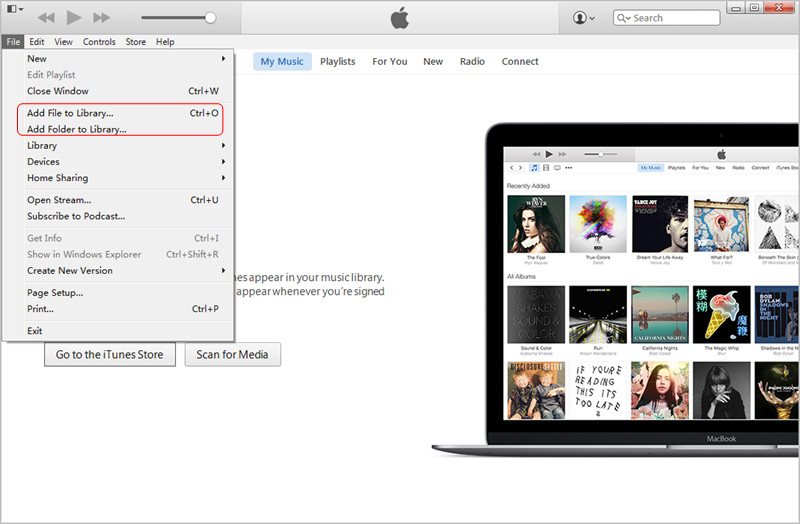
At the top menu, click “File > Add File to Library”.


Locate your movies folder on computer and select some to transfer. Once done, the movies are added to your iTunes movies library.


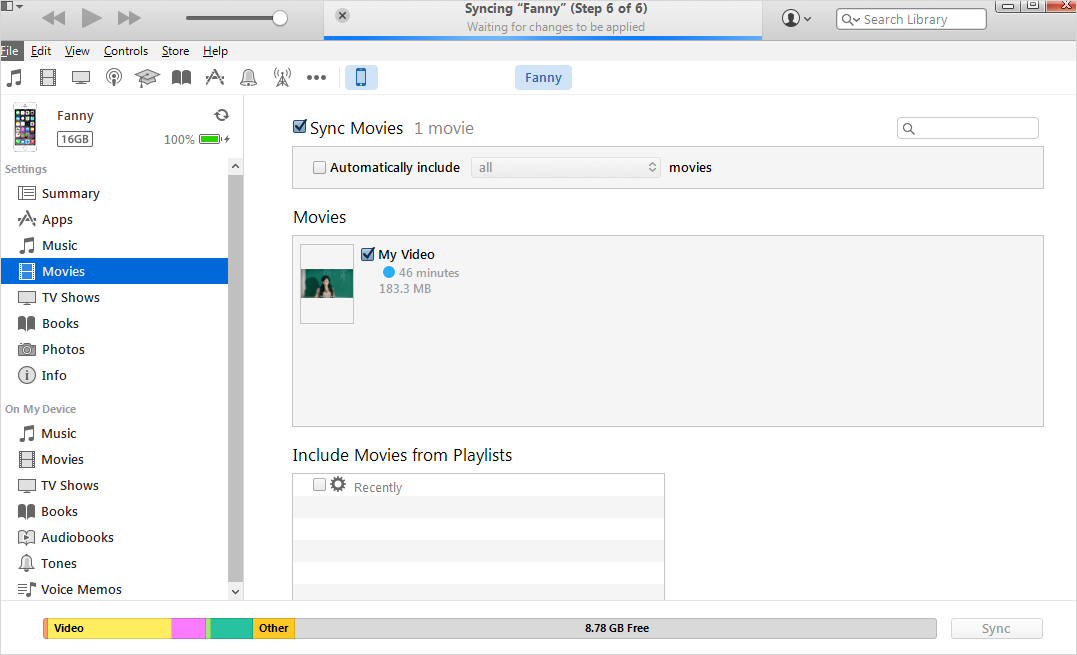
Step 2: Sync Movies to iPad from iTunes Library


Plug in your iPad/iPhone to your computer.


On iTunes, click on the icon that represents your iPad/iPhone near the top.


Choose “Movies” from left sidebar.


Check “Sync Movies”. You may need to fiddle with the drop down menu to find where it says “all.”Sponsor ads:


Jihosoft iPhone Data Recovery:https://www.jihosoft.com/recovery/ios-data-recovery.html


Jihosoft iPhone Data Recovery


Click “Apply,” and your device should now be automatically synced.


Limits in using iTunes:


iTunes library only supports some specific movies formats, like MP4. If your movies are not supported, you need to convert first.


Sometimes, the transferred movies cannot be played on your iPad/iPhone.


It will delete the existing movies from your iPad/iPhone as well.


It only allows you to transfer movies to iPad/iPhone from 1 computer/iTunes library.


How to Transfer Movies to iPad/iPhone without iTunes - 2 Ways!

Here are some ways to avoid using iTunes to transfer movies:
1 Transfer Movies to iPad Using Dropbox

Here is a short guide on how to use Dropbox for this:

Step 1: Download the Dropbox app on your device and make an account if you haven’t already.

Step 2: Go on your computer and either log into www.dropbox.com or install the DropBox desktop app and sign in.

Step 3: Upload the movies you want to your Dropbox account.

Step 4: Go on your device and sign into your Dropbox account using the app. Download the movies.

Remember that Dropbox will support all kinds of movie files, but some of those movies may not be playable on an iPad or iPhone. You will have to convert them either before or after you transfer them if this is the case.Besides, it doesn’t allow you to transfer movies to iPad from iTunes.Sponsor ads:

Gihosoft Free iPhone Data Recovery:https://www.gihosoft.com/iphone-data-recovery-free.html

Gihosoft iPhone Data Recovery Free

Free iPhone Data Recovery Software for Windows/Mac

Recover up to 12+ types of files, including contacts, SMS, photos, WhatsApp, Viber, notes, etc.

Restore lost data from iOS devices directly or from iTunes and iCloud backup

Recover iPhone data lost due to iOS upgrade/jailbreak, accidental deletion, device lost or broken

Support all the latest iPhone, iPad and iPod Touch

Both Free and Pro version.

If you lost data after you updated to a new iPhone, you can always use Gihosoft iPhone Data Recovery to get the data back from the old iPhone or backup.You may also like: iphonerecovery.com

If you use android phones, please choose Gihosoft Android Data Recovery.

With Gihosoft Android Data Recovery, no longer afraid of data loss!

Must read:Youtube video downloader for pc

Gihosoft RePicvid Free Photo Recovery Software provides a free photo recovery software for windows to help users recover the deleted or lost photo for free.

Jihosoft Android Data Recovery: the best Android Data Recovery software for Windows and Mac to recover deleted contacts, messages, photos, videos, WhatsApp and etc from Android devices.Tips:How to transfer messages from iPhone to iPhone
jihosoft Free iPhone Data Recovery


2 Transfer Movies to iPhone Using iTunes Alternative

Your best choice here is to use a transfer tool called iMyFone iOS Transfer. Not only is it the best file manager for iOS devices, but it will help you transfer any kind of movie file to your iPad/iPhone from computer and iTunes without covering the existing movies on device.

Not only that, but iMyFone iOS Transferwill convert the movie while transferring, so there’s no need for a converter. You can play the movies that you transfer in the native video app and you don’t need to use a third party player on your iPad/iPhone. Best of all, it supports both purchased and free movies just the same.

3 Steps to Add Music from Computer to iPhone 2019


3 Steps to Add Music from Computer to iPhone

Download a free trial of iMyFone TunesMate and folloe below to get music from computer to iPhone.

Step 1: Open TunesMate on your computer. Connect your iPhone to computer with a cable.

If it is the first time you use TunesMate, please tap “Trust” from pop-up window on iPhone to trust this computer.

Step 2: Click “Music” icon at the top menu on TunesMate. Click “Add”, then select “Add File” or “Add Folder”.

Step 3: Choose the location of music on your computer from the pop-up window. Select music files you want to add and click “OK” to start the transfer.


Note

If the music you want to add is not supported by iPhone, TunesMate will automatically convert it to the one that is playble on iPhone. iPhone supports sepcific music formats, including MP3, AAC, AAX, WAV, etc.

If you want to transfer music from different computers to iPhone, just install the software on other computers and repeat the above steps. Unlike iTunes sync, it won't erase your iPhone even when it's already synced to another iTunes library.

What Others Can TunesMate Do for iPhone Music?


It gives you two-way transfer between iPhone and iTunes/computer at will.


It has abilities to smartly manage iTunes/iPhone music library - add, edit, delete, back up.


You can manually change music info, like name, artist, album, artwork, etc.


It gives you choice to manage your music playlists, like creating, renaming, adding music to playlist, transferring songs between different playlists.

Want the most-efficient transfer of music from computer to iPhone? No other software does it better. Use iMyFone TunesMate! It offers a free trial.


02 Transfer Music from Computer to iPhone Using iTunes

Though using iTunes to transfer music from computer to iPhone is limited, but it is the official way to make it. Here is how it works.

Step 1: Using USB cable, connect your iPhone to computer already installed with the latest version of iTunes.

Step 2: Launch iTunes, and click on the “File” button from the top left menu.

Step 3: Choose "Add File to Library" to add music files to iTunes one by one or "Add Folder to Library" to add all song files in a folder to iTunes at once.


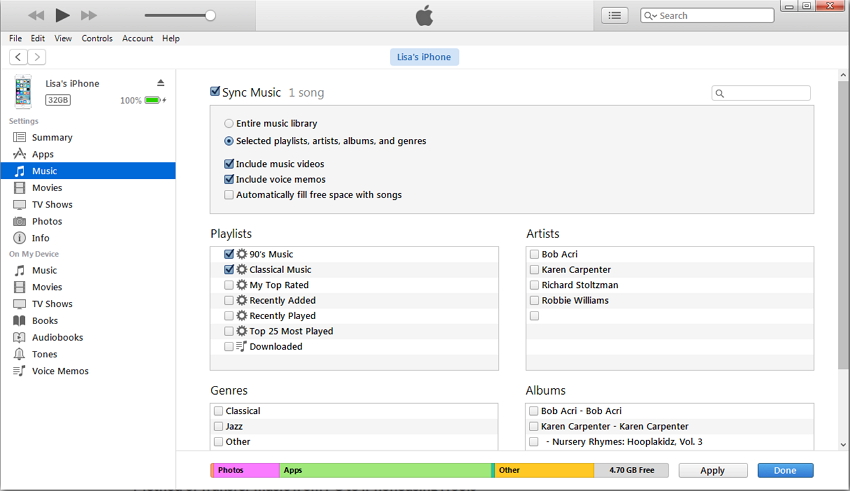
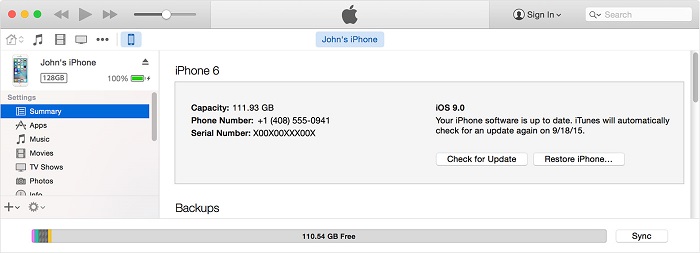
Step 4: Once done, click on the iPhone icon on iTunes to open the “Music” tab. Then tick the “Sync Music” box.

Step 5: Check the box corresponding to “Entire Music Library” or “Selected Playlists, Artists, Albums and Genres” if you want to sync all tracks in iTunes Media library or some selected few to your iPhone respectively.Sponsor ads:

send anonymous text message from computer for free

Must Read:If you lost data after you updated to a new iPhone, you can always use Gihosoft iPhone Data Recovery to get the data back from the old iPhone or backup.

Gihosoft Free iPhone Data Recovery:iphonerecovery.com

If you use android phones, please choose Gihosoft Android Data Recovery


Step 6: Click on the “Apply” button. Wait for the transfer to be completed.

You should know that, the music library on iPhone will be deleted using this way.

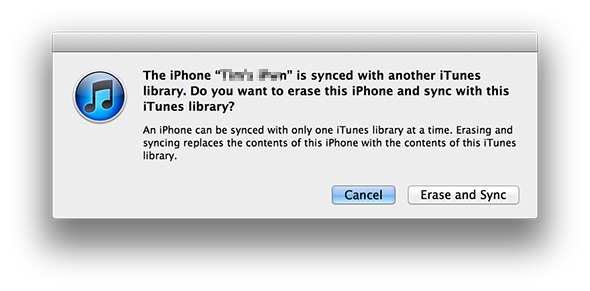
Note: If this is a new computer that your iPhone connects in the first time, you will see the following warning window.


You should tap “Cancel” or “Erase and Sync” to continue.

Limitations:


Only some specific formats supported by iTunes can be transferred.


It would cover original music files on iPhone.


You can transfer music to iPhone from one computer. Or your iPhone will be erased.

Tuesday, February 19, 2019

Top 5 Free Music Players for iPhone 2019


Top 5 Free Music Players for iPhone

There’s no better price than free, and here are some of the (often ad-supported) apps that you can get from the App Store to play your music or to listen to new tunes radio-style:
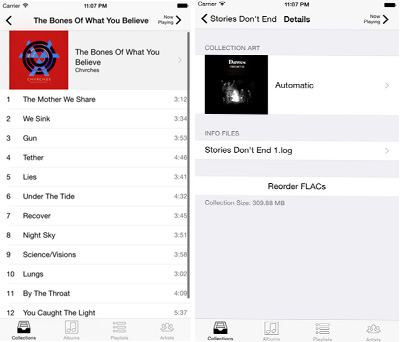
Top 1 FLAC Player +

As the top 1 free iPhone music player, it can play so many kinds of files and you have a lot of different options. Whether your music is in MP3 format, FLAC, WMA, AAC, or many other formats, this music player iPhone can accommodate you. Its versatility is comparable to the popular VLC Media Player for the PC, except for your iPhone. It also lets you manage your music, which is a nice plus.


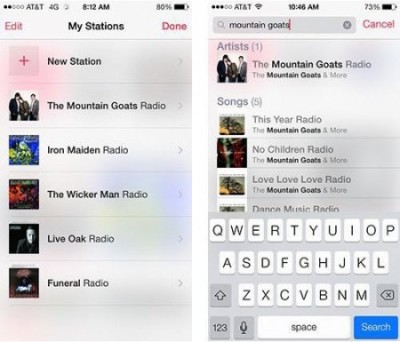
Top 2 iTunes Radio

If you want to listen to streaming music like you would on a radio station, this is Apple's music player app for that. It’ll make playlists based on your preferences, and it’s already part of iOS, so you don’t have to worry about downloading it. It integrates nicely with Apple’s other music applications, and though it’s free, there’s an option to subscribe so that you don’t have to listen to the ads. Just set iTunes default music player on your iPhone.


Top 3 Pandora iPhone Music Player

Of course, Pandora has a long reputations as one of the best streaming players out there. It is similar to iTunes Radio, but has been around for much longer. It is very good at recommending music that you will like, but the ads may get on your nerves after awhile. Luckily, just like iTunes Radio, you can pay to listen ad-free.


Top 4 Musio Free

Musio allows you to use convenient gestures to control the app, just as you might on other built-in apps on the iPhone. It is simple and efficient, and you can add songs to your playlist by swiping. The biggest con to this app though is that you need to pay for the premium version to add songs to your queue.


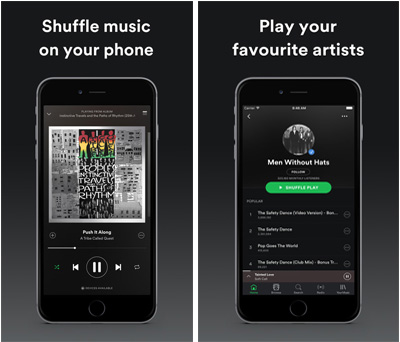
Top 5 Spotify

Another streaming music player iPhone, you can listen to all your favorites at will with spotify. You can listen to music, podcasts, and watch music videos. Like a lot of apps, to access better features, you will have to pay, though the app itself is free.


Sponsor ads:

Gihosoft Free iPhone Data Recovery:iphonerecovery.com

Free iPhone Data Recovery Software for Windows/Mac

Recover up to 12+ types of files, including contacts, SMS, photos, WhatsApp, Viber, notes, etc.

Restore lost data from iOS devices directly or from iTunes and iCloud backup

Recover iPhone data lost due to iOS upgrade/jailbreak, accidental deletion, device lost or broken

Support all the latest iPhone, iPad and iPod Touch

Both Free and Pro version.

If you lost data after you updated to a new iPhone, you can always use Gihosoft iPhone Data Recovery to get the data back from the old iPhone or backup.

Top 10 Best FRP Bypass Tools to Bypass Google Account on Android Device 2019

Worth reading:download youtube 1080p

If you use android phones, please choose Gihosoft Android Data Recovery


Jihosoft Android Data Recovery: the best Android Data Recovery software for Windows and Mac to recover deleted contacts, messages, photos, videos, WhatsApp and etc from Android

Sunday, February 17, 2019

Erase and Recover Data on a Locked iPhone via iTunes 2019


Erase and Recover Data on a Locked iPhone via iTunes

If you had backed up your data on iTunes, you can erase the device and then restore the data on the iTunes backup. Follow these simple steps to do it.

Step 1: Connect the iPhone to your computer and then open iTunes. When asked for a passcode, try using anther computer or use recovery mode.

Step 2: wait for iTunes to sync your device and create a backup. Once the process is complete, click “Restore iPhone.”

Step 3: Follow the instructions until you get to the Set Up screen and the tap “Restore from iTunes Backup.” Select the device in iTunes and then choose a relevant backup to restore the device.


Must Read:If you lost data after you updated to a new iPhone, you can always use Gihosoft iPhone Data Recovery to get the data back from the old iPhone or backup.

Gihosoft Free iPhone Data Recovery:iphonerecovery.com

If you use android phones, please choose Gihosoft Android Data Recovery


Sponsor ads:Free Antivirus for iPhone

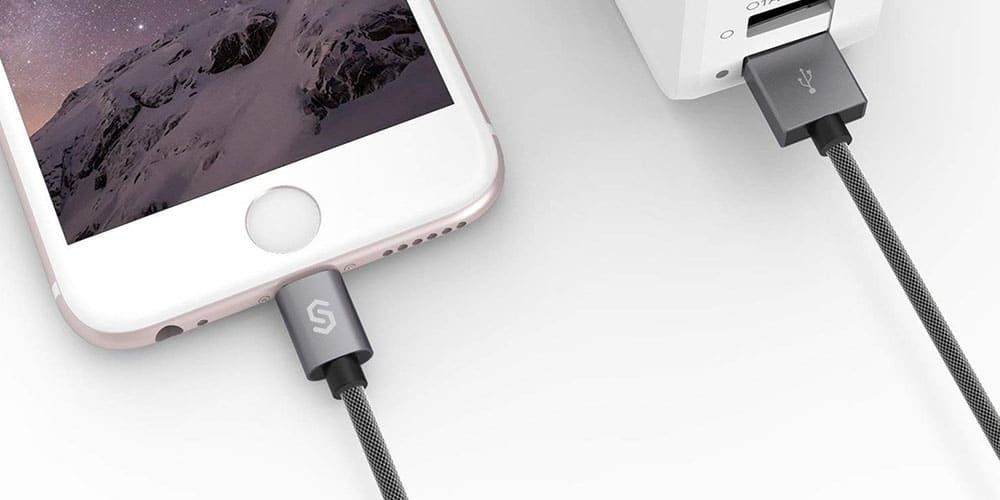
Find Your Next Dependable Charging Cord Here [Deals Hub]

There’s no such thing as too many charging cables. Fortunately, these days there are plenty of options when it comes to color and length. We...